Tizen TV App Development: Build a Samsung Web App
Start Tizen TV app development with a Samsung web project, certificate setup and device debugging. Follow a clear workflow and verify it on your target TV.
Samsung makes you deal with signing before you get the satisfaction of seeing your first screen on the TV. Its certificate guide is blunt: "all applications must be signed with valid certificates before they can be installed or run." So I'd handle the certificate early in your first Tizen TV app development session. The deliverable is a signed web app that launches on your chosen television.
We'll use Tizen Studio's documented project workflow, then connect a physical TV. This is a documentation-based walkthrough rather than a claim that the steps were completed on a particular model. Keep a run record as you follow it, because your installed tools and target TV are part of the result.
Choose and record your development setup
Samsung documents Tizen Studio project creation and a Tizen TV extension for VS Code. The latter is an auxiliary extension of the base Tizen Extension. We're staying with Studio's menu names here, so you can follow one route from project creation to launch.
Samsung's current TV Extension download page lists version 10.0.0, released February 26, 2026, with the Tizen 10.0 emulator and Chromium M130. That's the current tool release, not a minimum for every TV you support. Before opening the wizard, record the version and platform packages you actually installed, your computer's OS, and the TV's model and firmware. Samsung says the project wizard's available platform versions depend on what's installed.
I'd keep those details in a short project note next to the source. A screenshot of an editor window rarely tells the next developer which platform packages produced it. For Samsung TV app development across several models, also check the target TV platform before treating the first device as representative of the release.
Create a project you can explain
In Studio, follow Samsung's project wizard: choose File > New > Tizen Project, then a template, the installed profile/version, and Web Application. The Basic Project supplies remote-key handling scaffolding in main.js; Empty gives you the smaller file set below. Choose Basic if you want that scaffold to inspect.
Files and inputs in the first Samsung web-app workflow:
| Item | Purpose | Before the first run |
|---|---|---|
| index.html | Entry page | Verify the visible screen |
| main.js | Application behavior | Check remote interaction |
| config.xml | App configuration | Review identifiers |
| icon.png | Project icon | Confirm file exists |
| Author certificate | Signing identity | Assign backup owner |
| Distributor certificate | Device authorization | Review target DUID |
The file names come from Samsung's Empty template; the last column is my suggested first-run review. The certificate roles are documented in Samsung's signing workflow.
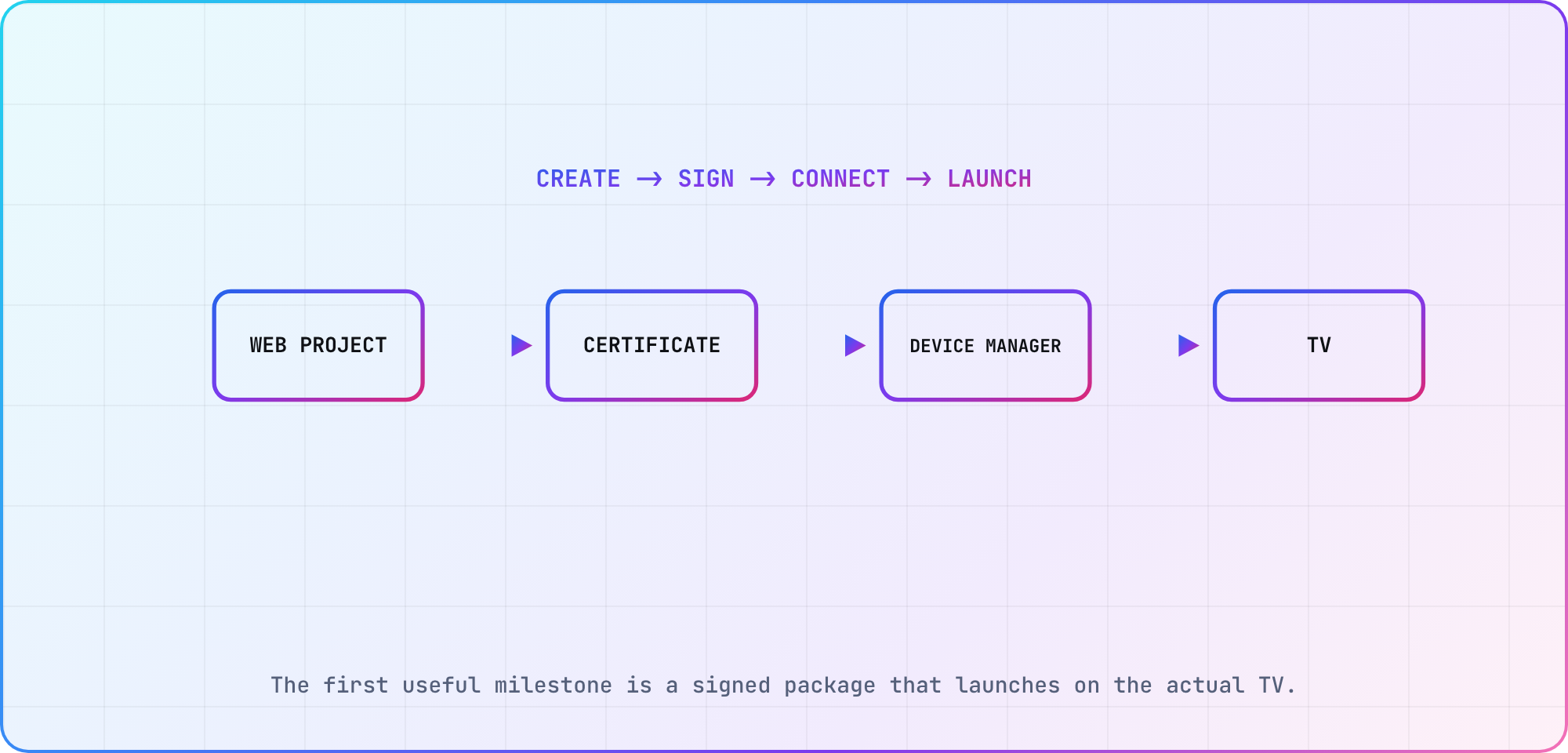
Illustrative first-run sequence assembled from Samsung's current project, certificate and physical-device guides.
For the first visible change, put a distinctive build label in the entry page, such as TVAppLab setup exercise. Keep the generated application identifiers unless you have a reason to change them. You'll want to recognize your own screen when it launches, and a tiny edit makes it easier to separate your changes from the template.
Give the signing keys an owner
A Tizen certificate profile combines an author certificate with one or more distributor certificates. In Samsung's wizard, choose the Samsung certificate route and the TV device type. Create or import the author certificate, then complete the distributor step with the target device's DUID.
The update rule is worth reading before the first release. Samsung requires the same author certificate for updates to an already published application. Put its backup location and owner into the release handoff now, while everyone still remembers where the files went.
My practical setup is a repository note containing the certificate profile's name and the person responsible for it, with the private files stored in the team's approved secret storage. Keep passwords and certificate files out of the example repository and screenshots. A colleague should be able to identify the right signing profile from the note without being handed private material in a chat transcript.
Before packaging, check which profile is active. Samsung's documentation says that active profile is used for packaging, so a correctly created certificate sitting unused beside another profile won't explain the build's signature.
Connect the Samsung TV and run the app
Use Samsung's TV device instructions for the connection sequence. The computer and TV need to share a network. In the documented Apps settings flow, enter 12345, enable Developer Mode, enter the development computer's IP address, then reboot the TV.
In Studio, open Tools > Device Manager. Add the TV through Remote Device Manager, supply the TV's connection details, and switch its connection on. The addresses are easy to mix up here (both screens want an IP): the TV receives the computer's address in Developer Mode; Studio receives the TV's address when you add the device.
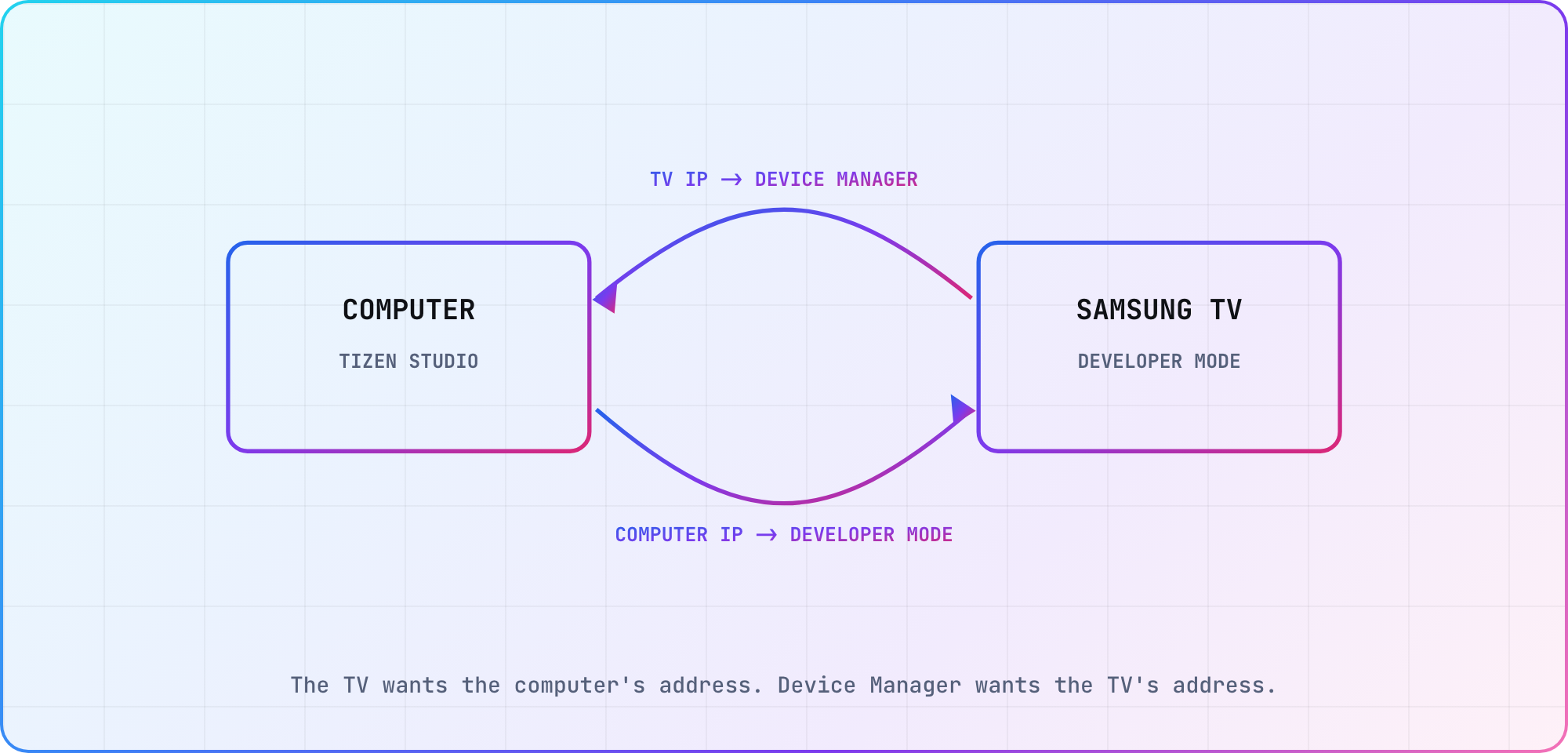
Connection direction from Samsung's current TV Device guide: Developer Mode stores the computer address, while Device Manager stores the TV address.
Samsung documents Run As > Tizen Web Application for a normal launch and Debug As > Tizen Web Application for debugging. The latter opens Web Inspector. Follow that path with the small project and check for your distinctive build label on the screen.
Record the actual model, firmware, package revision and visible result. If launch fails, preserve the error message before changing several settings. This article supplies the sequence to check; your run record supplies the evidence that it worked on your setup.
Separate project, signing and connection failures
Where did the attempt stop? I'd start with that question before recreating certificates or changing the application code.
If project creation failed, compare your selected application type and installed platform packages with Samsung's wizard. If the television isn't connected, walk the device connection sequence again, including the computer address and reboot. If installation reports an error, keep its exact text and check the signing profile associated with that package.
For a launched app with unexpected behavior, use the documented debug path and capture the smallest reproduction you can. Samsung explicitly warns that the simulator's web engine differs from the TV's, and recommends final checks on the emulator and television. A browser-looking result on your laptop leaves device behavior to verify.
Once the first launch is repeatable, continue with the Samsung TV testing workflow. Bring the source revision and run record with you. The next developer can then reproduce that first screen before adding remote-interaction and playback checks.
Frequently asked
Can I use VS Code for Tizen TV development?
Samsung provides a Tizen TV extension as an auxiliary extension of the base Tizen Extension. Record both when choosing that route. This walkthrough uses Studio's menus, so follow the extension's own workflow rather than expecting its commands and screens to match the Studio sequence exactly.
Why does a Tizen app need certificates?
Samsung's signing documentation ties certificates to application source and integrity verification. The profile combines author and distributor certificates. For your first run, check the active profile, preserve the author certificate and include the intended test device in the distributor-certificate workflow before investigating installation errors elsewhere.
Is a simulator run enough before shipping a Samsung app?
Samsung's device guide recommends testing on the television and explains that the simulator uses a different web engine. I'd treat the simulator result as one entry in the test record, then check the submitted build's important behaviors on your selected physical TV models before release.
Which files are in an empty Tizen web project?
Samsung lists index.html, main.js, icon.png and config.xml in its Empty template. Begin by locating each file and identifying what your exercise changes. A recognizable label in the entry page gives you a simple visible check while you work through signing and the first device launch.
Can I replace the author certificate for an update?
Samsung says an update to a published application must use the original author certificate. Treat its backup and ownership as release work. Before another developer takes over packaging, make sure they can identify the original certificate through your team's secure process and distinguish it from a newly created profile.
What does the TV need for a development connection?
Follow Samsung's network and Developer Mode setup: use the same network, enter the computer's IP address and reboot after enabling the mode. Then add the TV in Studio's Device Manager. Keep both addresses in your run notes so a failed connection can be checked methodically.
Keep reading
BrightScript Tutorial: Read and Write Your First Roku Code
A BrightScript tutorial for developers learning Roku: understand types, arrays, functions and invalid values, with small examples and clear version checks.
webOS app submission: Prepare for LG Seller Lounge
Prepare a webOS app submission for LG Seller Lounge: package metadata, UX scenarios, self-check results and a clear plan for responding to review feedback.