Android TV Emulator Setup and Troubleshooting
Set up an Android TV emulator in Android Studio, choose a compatible system image and diagnose launch or acceleration problems before testing on a real TV.
An Android TV emulator that reaches the home screen has only passed the first test. The useful milestone is an app that installs, appears in the TV launcher and responds to the same remote sequence every time. When one of those stages fails, you want to know which layer owns the failure before you start flipping settings.
Google defines an Android Virtual Device as a hardware profile, system image and storage configuration. Add the host OS, CPU architecture and emulator version to that record. "It fails on the TV emulator" isn't a reproducible environment; it's the start of a follow-up conversation.
Create the TV virtual device
Open Android Studio's Device Manager and start the virtual-device creation flow. In Google's AVD instructions, you choose the hardware profile before the system image. Select a TV profile, then an image whose API level satisfies your app's minimum SDK.
Make a note of the image's name, API level and ABI before finishing. "The TV emulator" is a surprisingly vague bug-report environment when two people installed different images several months apart. Include your host OS and CPU architecture, Android Studio version and emulator version in the same note.
Google distinguishes images with Google APIs from images carrying the Play Store. The AVD guide says Google APIs images include Play services, while Play Store images are release-signed and don't allow root. Choose for the capabilities your test needs, then record that choice explicitly.
Boot the new Android TV AVD before introducing the app. If the virtual device can't reach its home screen, work on that problem first. You can then separate an environment failure from something caused by the package you're about to install.
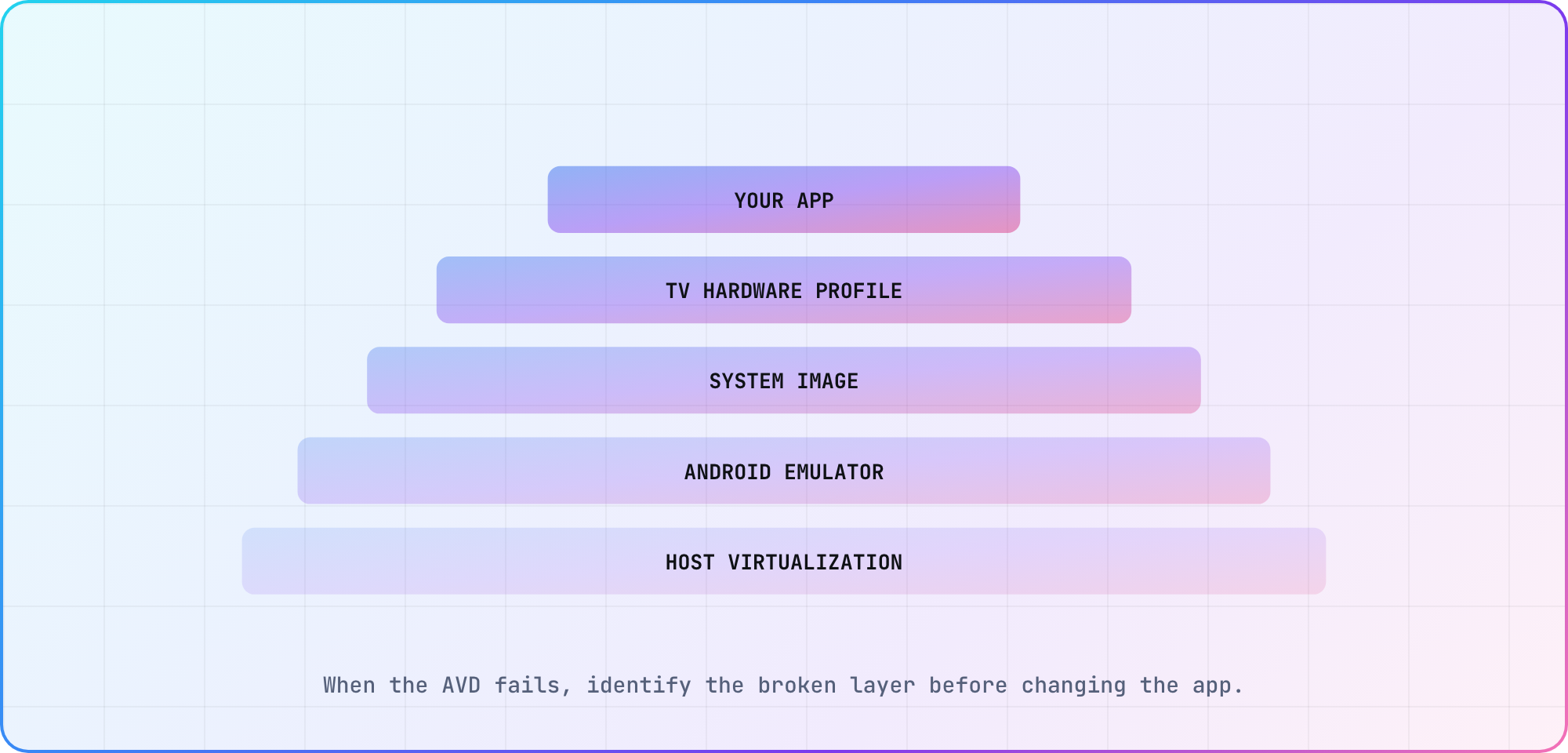
When the AVD fails, identify the broken layer before changing the app.
Install the app and check the launcher
Select the running TV AVD as the target in Android Studio and run your configured app. Google's TV setup guide covers this development route and the manifest declarations that make a TV activity discoverable.
The launcher intent filter includes:
<intent-filter>
    <action android:name="android.intent.action.MAIN" />
    <category android:name="android.intent.category.LEANBACK_LAUNCHER" />
</intent-filter>
This is an excerpt for the relevant activity inside your existing manifest. Google's guide explains that an app without the TV launcher category won't appear in the TV launcher. Check the merged manifest for the build variant you installed, rather than relying solely on the source file you remember editing.
I'd treat installation and launcher visibility as separate observations in the run record. First keep the install result; then go to the TV home screen and find the app. If Studio can start an activity but the home screen can't show it, repeatedly reinstalling the same package gives you little new information. Review the activity's launcher declaration and the TV artwork configuration before changing unrelated settings.
Check acceleration when the virtual device struggles
TV emulator acceleration has two parts worth keeping separate: graphics rendering and virtual-machine acceleration. Google's acceleration guide documents both, plus this diagnostic:
emulator -accel-check
If emulator isn't on your command path, invoke that executable from the SDK's emulator directory. Preserve the actual diagnostic output with your host details. The command above is a documented diagnostic, not output captured from a machine used for this article.
For VM acceleration, Google's current guidance recommends Windows Hypervisor Platform, or WHPX, on Windows; macOS uses Hypervisor.Framework and Linux uses KVM. The same guide schedules the Android Emulator hypervisor driver's sunset for December 31, 2026. Recheck that guidance when setting up a Windows host near the transition.
If the VM can run but rendering is poor, inspect the graphics mode separately. Change one setting, repeat the same screen or interaction, and keep the before-and-after observation. If the change helps, the next developer can repeat it with the same screen and host details.
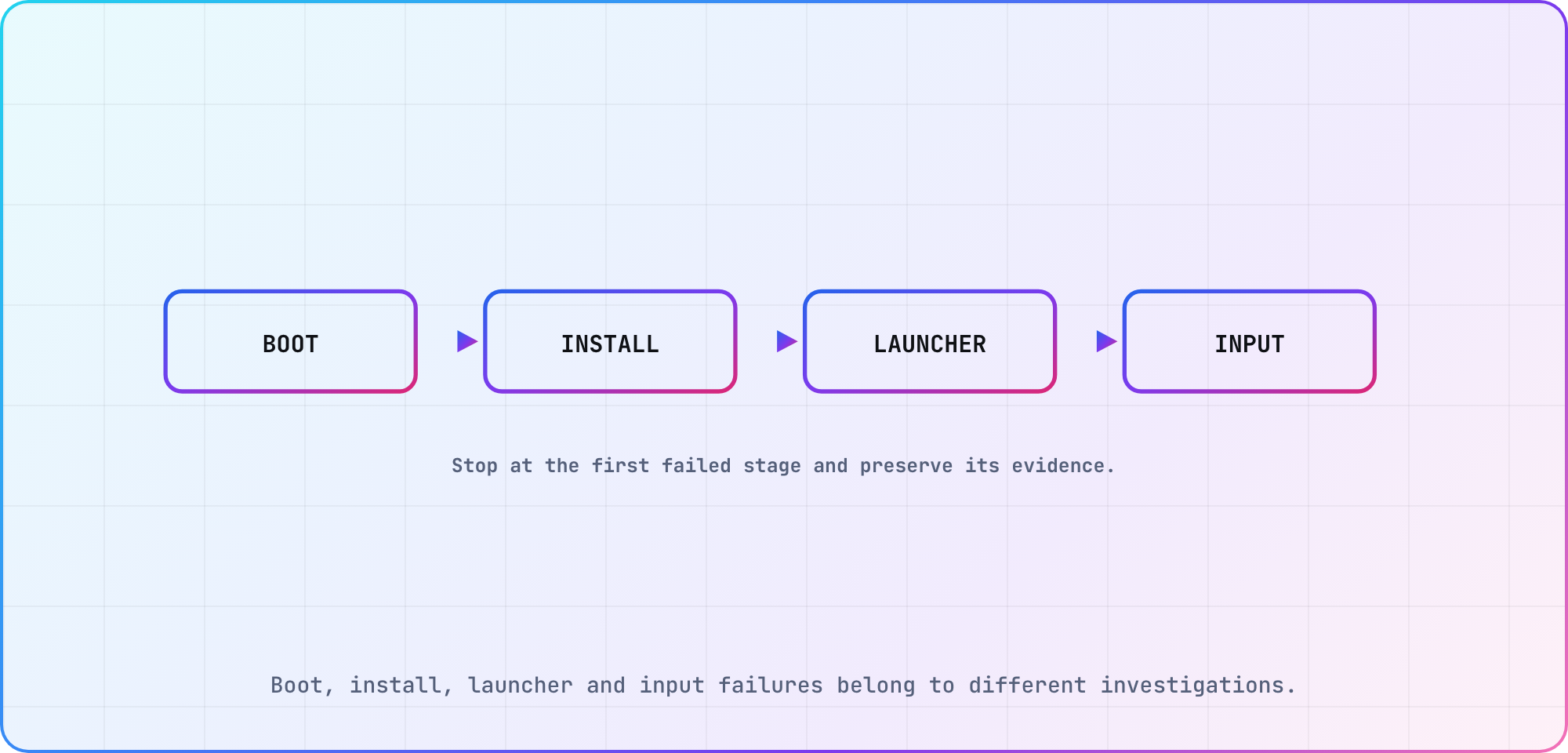
Boot, install, launcher and input failures belong to different investigations.
Troubleshoot by the stage that fails
Use the symptom to choose the first investigation. The following table is a proposed diagnostic sequence based on Google's AVD configuration, acceleration and TV manifest documentation. It doesn't mean every installation error has the same cause.
| Symptom | First investigation | Record |
|---|---|---|
| AVD will not start | Host virtualization | Acceleration diagnostic |
| Poor rendering | Graphics mode | Host GPU and mode |
| App will not install | Image API compatibility | Install error |
| App missing from home | TV launcher declaration | Merged manifest |
| Unexpected persisted state | AVD user data | Reproduction before reset |
| Works only on one laptop | Configuration difference | Image and host details |
For an install failure, read the error and compare the selected image with the app's minimum SDK. For a launch failure, keep the app logs and the steps that reached it. If you suspect persisted state, reproduce the behavior before wiping anything.
Google documents dedicated AVD user-data storage and the Wipe Data action. Treat that reset as a deliberate experiment: save the evidence, reset the disposable test target, and rerun the same sequence. Record whether the behavior changed so the reset contributes an answer to your investigation.
Turn the setup into a reusable test target
Here's the run-note shape I'd keep with the project. The placeholders are fields to fill, not results from a completed device run:
Host OS / CPU:
Android Studio / Emulator versions:
AVD profile / system image / API / ABI:
App revision / build variant:
Acceleration diagnostic:
Input sequence:
Expected result:
Observed result:
Logs or screenshots:
Use the same note for a second developer's setup, then compare the fields when results differ. It's especially useful to retain the image details rather than just the display name you've given the virtual device.
An Android Studio TV emulator is a repeatable development target. For release work, select a real TV for follow-up testing and plan the remaining device tests, including your app's remote and playback journeys. Google documents both emulator and physical-device development; keep those results separate in your evidence.
The setup is ready to hand off when another developer can recreate the chosen AVD and repeat your app's launch sequence. Include the failure you fixed along the way, with the diagnostic output that helped you find it.
Frequently asked
Why is my installed app missing from the TV launcher?
Check the installed build's activity declaration for LEANBACK_LAUNCHER. Google documents that category for TV discovery. Keep installation success and home-screen visibility as separate checks, then inspect the merged manifest and artwork configuration before reinstalling an unchanged package and expecting a different launcher result.
Should I install HAXM for a new emulator setup?
Start with Google's current acceleration guidance, which recommends WHPX on Windows and documents the relevant host alternatives. It also says newer emulator versions no longer use HAXM. Check the actual emulator version and host requirements rather than following an old setup article's driver instructions by habit.
Does wiping an AVD uninstall my test data?
Google's AVD management guide describes Wipe Data as resetting the virtual device's user data. Save your reproduction steps and relevant logs first. Then repeat the same test after the reset and record what changed, so you can distinguish a fresh-state result from the previous persisted-state behavior.
Can I use an image older than my app's minimum SDK?
The selected system image needs an API level that satisfies the app's minimum SDK requirement. Check that relationship when creating the AVD and again when an installation fails. Keep the app build and image API together in your notes so another developer can verify the same combination.
Can I root a Play Store emulator image?
Google says Play Store system images are release-signed and don't permit root. Choose an image according to your test's needs before starting the run. Record the image type explicitly, since an assumption about root access can otherwise get confused with an application or host-configuration problem.
What should I record for a reproducible TV AVD?
Record the hardware profile, system image and storage choices, then add host OS, CPU architecture, emulator version and app build. I also keep the input sequence and actual result. Those details let someone recreate the environment and compare observations instead of guessing which setup "the emulator" meant.
Keep reading
CTV Video-Start Benchmarks: Targets and Test Method
Define tap-to-first-frame consistently, segment TV devices into cohorts and publish median/p95 video-start results without inventing cross-platform averages.
DRM Playback Testing for CTV: Streams, Licenses and Devices
Plan DRM playback testing for CTV apps: check protected streams, license requests and device evidence across Android, Samsung and Apple playback workflows.