React Native TV: Build for Apple TV and Android TV
Choose a React Native TV setup for Apple TV and Android TV. Understand the maintained fork, Expo options, focus handling and the platform work still required.
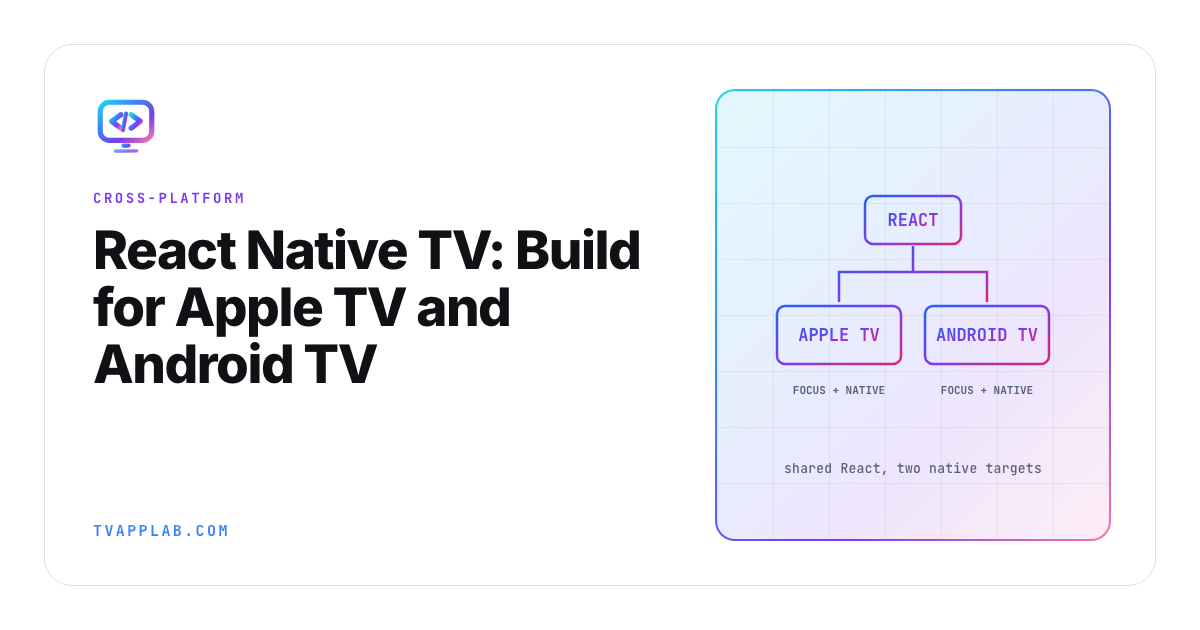
If the roadmap says "React Native TV," write the target platforms beside it. The maintained react-native-tvos fork covers Apple TV and Android TV. It doesn't quietly turn Roku, Tizen or webOS into React Native targets, however convenient that estimate would be.
We'll use Expo's TV route for a small remote-controlled screen, then draw the boundary between genuinely shared product code and the focus, playback and release work that still belongs to each platform. The example is narrow on purpose and doesn't claim a device run.
Start with the targets the project actually supports
The maintainers' README identifies Apple TV and Android TV support, describes release numbering relative to React Native, and publishes the TV fork as react-native-tvos. The package is installed under the react-native dependency name using an npm alias.
As of October 15, 2026, Expo's with-tv template, which we'll use below, targets Expo SDK 57 (expo ~57.0.13), and its package.json carries this dependency entry:
{
  "dependencies": {
    "react-native": "npm:react-native-tvos@0.86-stable"
  }
}
That's an excerpt to merge into the appropriate project's dependencies, not a complete package.json. It matches the SDK 57 row of Expo's compatibility table. The Expo TV guide still uses SDK 56 and 0.85-stable as its worked example, but its rule is the one to follow: "The react-native-tvos version must match the Expo SDK you are using." The stable-branch tag can resolve to a newer patch over time (0.86-stable pointed at 0.86.3-0 that day), so record the exact installed package version and retain the lockfile after installation.
The fork's maintainers say the core package and TV fork can't coexist as the project's React Native dependency. Review the alias as a dependency decision. Then compare the TV platforms in your roadmap: Roku, Tizen, webOS and Vega integrations need their own researched implementation plans before anyone counts them as covered by this walkthrough.
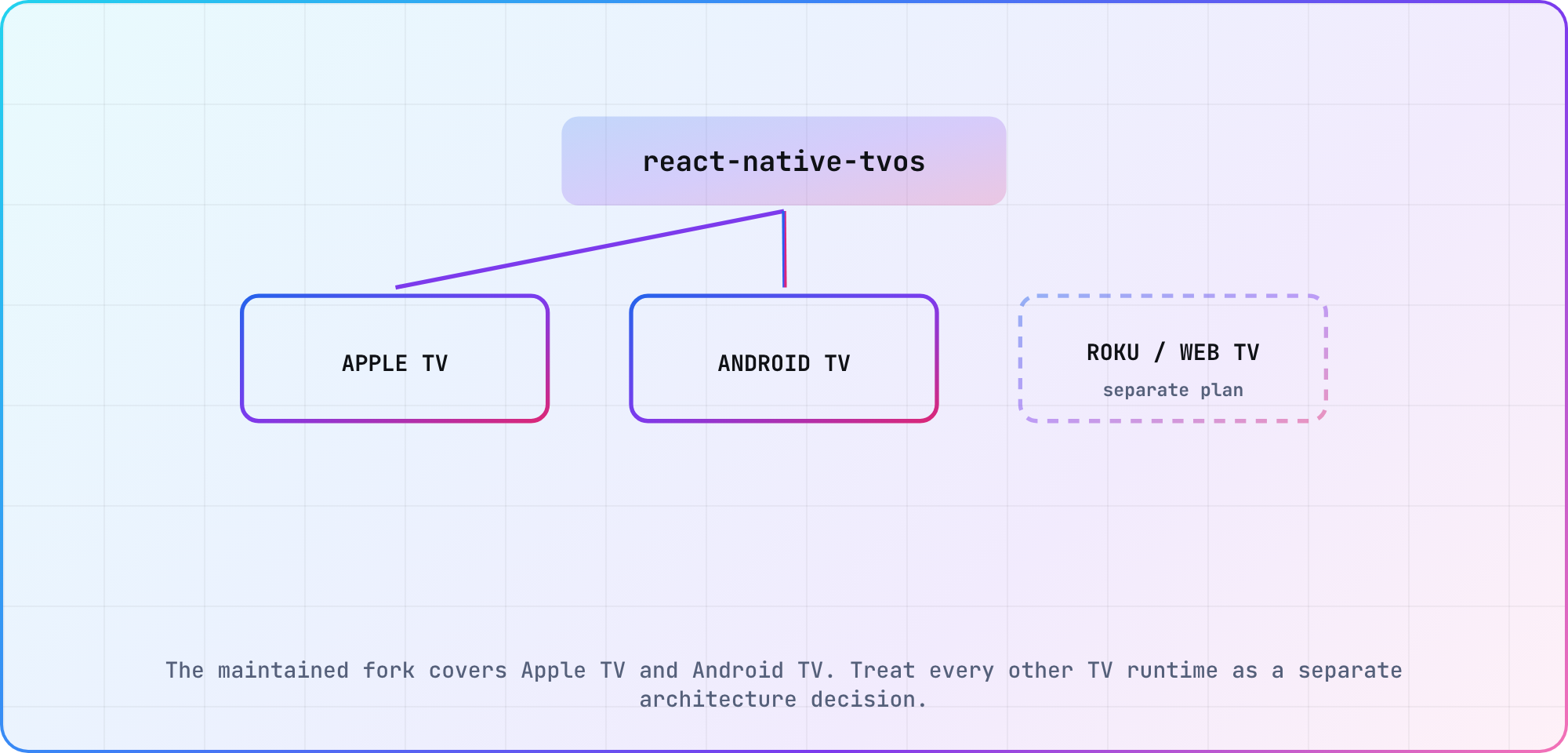
The maintained fork covers Apple TV and Android TV. Treat every other TV runtime as a separate architecture decision.
Choose the Expo or community-template route
The fork documents a community TV template, while Expo documents its own TV templates and native-generation workflow. For a new exercise project, Expo's example command is:
npx create-expo-app MyTVProject -e with-tv
Template output changes over time: Expo released SDK 58 (React Native 0.88) on October 15, 2026, and the with-tv template was still on SDK 57 that day. Check the generated SDK, React Native TV dependency and TV config plugin before treating the new directory as a pinned example. For an existing project, follow Expo's complete integration steps rather than pasting the dependency excerpt above and skipping the plugin configuration.
Expo documents @react-native-tvos/config-tv and enables its TV modifications through EXPO_TV=1 or the plugin's isTV option. Its prebuild workflow includes:
export EXPO_TV=1
npx expo prebuild --clean
Run that in a disposable exercise project or after preserving your native changes: the command regenerates native projects. This article hasn't executed it. Record the generated project configuration and exact tool versions before continuing to platform builds.
With the corresponding environment ready, Expo documents npx expo run:android for Android TV and npx expo run:ios for the Apple TV simulator. Pick one target first, get a recorded build result, then repeat the process for the other.
Build a screen that responds to the remote
The fork documents Pressable focus, blur and selection events. Use separate state for the focused title and the selected title; moving the remote shouldn't quietly become a selection in your example.
import React, { useState } from 'react';
import { Pressable, Text, View } from 'react-native';

export default function BrowseExercise() {
  const [focused, setFocused] = useState(null);
  const [selected, setSelected] = useState(null);
  const titles = ['Harbor Walk', 'Night Train'];

  return (
    <View style={{ padding: 48, backgroundColor: '#111827' }}>
      {titles.map((title) => (
        <Pressable
          key={title}
          onFocus={() => setFocused(title)}
          onBlur={() => setFocused(null)}
          onPress={() => setSelected(title)}
          style={{
            padding: 20,
            marginBottom: 12,
            borderWidth: 3,
            borderColor: focused === title ? '#FACC15' : '#374151',
          }}>
          <Text style={{ color: '#FFFFFF' }}>{title}</Text>
        </Pressable>
      ))}
      <Text style={{ color: '#FFFFFF' }}>
        {selected ? `Selected: ${selected}` : 'Choose a title'}
      </Text>
    </View>
  );
}
The expected behavior is a visible border on the focused control and a label change when it's selected. The values and styling are invented for the exercise. Build it in your configured TV project and record the actual remote behavior before calling it verified.
For platform-specific behavior, the fork provides Platform.isTV and Platform.isTVOS. Use those checks where the implementation really differs. For more complicated React Native TV focus layouts, inspect the documented TVFocusGuideView behavior and examples rather than assuming directional navigation will find every control in your design.
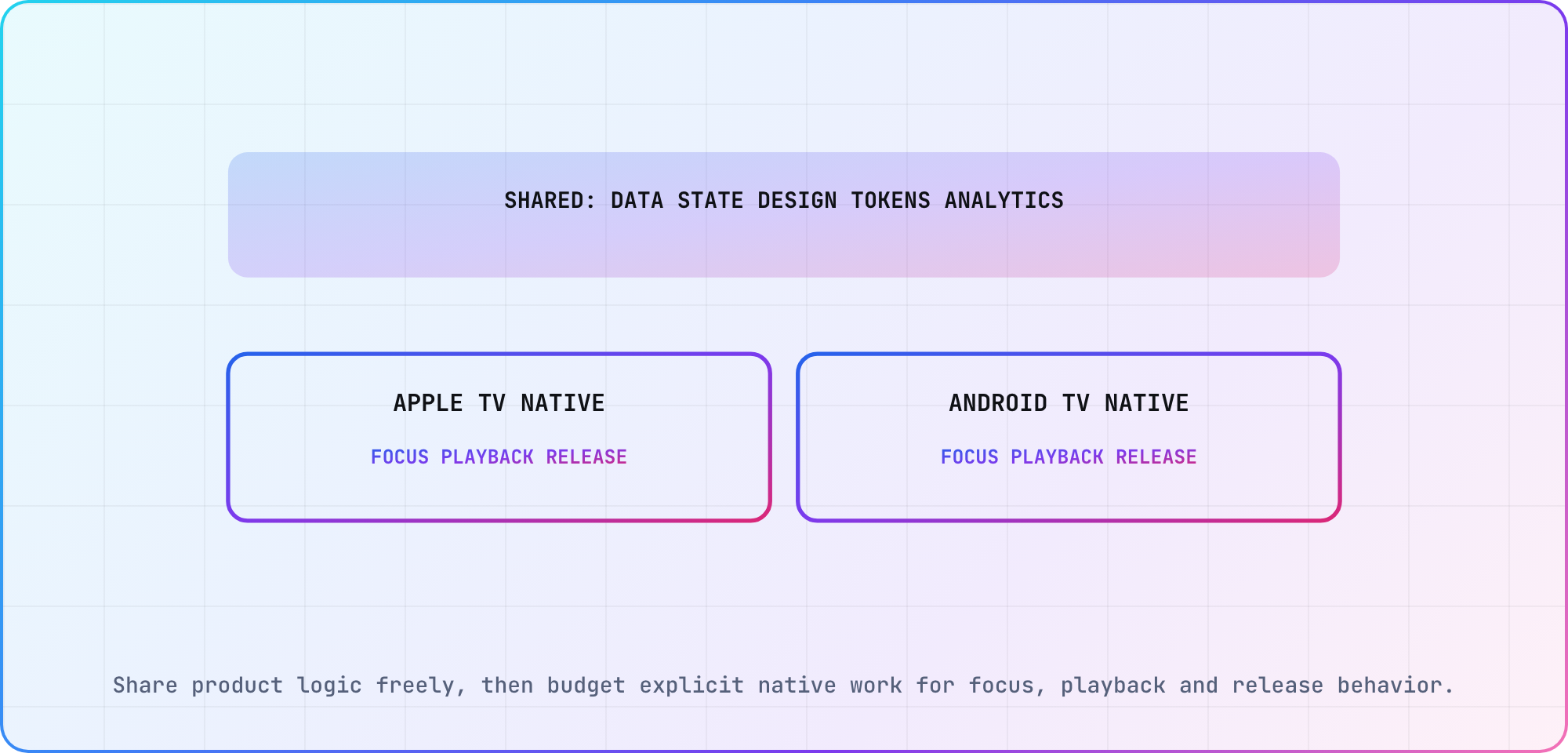
Share product logic freely, then budget explicit native work for focus, playback and release behavior.
Decide what stays shared
I'd begin a port review by putting each feature into a small table like this. These are sharing candidates and verification tasks, not compatibility guarantees for the libraries already in your mobile application.
| Area | Sharing candidate | Verify separately |
|---|---|---|
| Domain logic | Data transformation | Platform dependencies |
| API client | Request construction | Authentication environment |
| Visual components | Design intent | Focus and selection |
| Navigation | User journeys | Remote Back behavior |
| Media player | Product requirements | Native playback integration |
| Build setup | Version policy | Platform project configuration |
Expo maintains a list of TV-supported libraries and limitations. Compare your dependency list with that guidance and the library's own platform documentation. If a media or authentication dependency is central to the app, prove its target build and main interaction early.
The little screen keeps the first build manageable (there's no player or sign-in flow to untangle yet). Add one of those journeys next, with a clear expected result on both Apple TV and Android TV, before expanding the shared component library around it.
Validate both builds before calling the port complete
On each target, check the first focused control, movement between the two titles and selection of each title. Then extend the exercise with a details screen and verify the remote's return behavior. Keep the input sequence and observed focus position with the exact build and device information.
Expo's documented dev-client limitation is specific: Apple TV supports basic operation with a local or tunneled packager, but EAS authentication and listing EAS builds and updates aren't supported in that setup. Don't describe this as the absence of all Apple TV development-client support.
For React Native Android TV and Apple TV work, keep separate build and runtime results even when the source is shared. A dependency change can require both to be rechecked. Use the same case names when you plan tests for each supported platform, so the team can see where the observations agree and where the native integration still needs work.
Frequently asked
Does react-native-tvos support five TV platforms?
The fork's documented TV scope is Apple TV and Android TV. Plan other television platforms through their own verified implementations and build paths. A shared React codebase may still be useful, but it doesn't establish that this package supplies a working native target for every platform on your roadmap.
Can I keep the standard React Native package beside the TV fork?
The maintainers say you can't use both as the project's React Native dependency. The TV package is aliased under react-native. Review that change with the project's dependencies, then record the resolved fork version and lockfile so the team can reproduce the particular build it actually checked.
Can I use Expo for a TV app?
Yes. Expo documents TV templates, configuration and platform builds. Follow the SDK-specific steps and check library support. Its Apple TV dev-client limitation concerns EAS authentication and build/update listings in the documented setup, so distinguish that limitation from the basic local or tunneled-packager workflow the guide supports.
How do I detect TV in React Native?
The fork documents Platform.isTV and Platform.isTVOS. The first identifies a TV environment; the second identifies Apple TV specifically. Use the narrower check when the behavior is genuinely platform-specific, and keep the corresponding case in both platforms' test records so shared code changes remain reviewable.
What does TVFocusGuideView do?
The maintainers describe it as a focus-navigation helper implemented for Apple TV and Android TV, including layouts where controls aren't directly in line. Inspect the examples for your layout, then test the actual directional journey. Its presence in a component tree doesn't establish that every desired focus transition works.
Which Expo and React Native TV versions go together?
Expo's compatibility table gives one React Native TV branch per SDK: 0.86-stable for SDK 57, which the with-tv template used on October 15, 2026, and 0.85-stable for SDK 56. SDK 58 shipped that day on React Native 0.88, yet its row listed 0.87-stable, so confirm that pairing before upgrading. Record the exact resolved versions either way.
Keep reading
Remote Smart TV Testing Without a Local Device Lab
Compare remote smart TV testing by exact hardware coverage, interaction depth, private-network access and evidence capture, then keep a small local smoke kit.
Samsung Tizen TV Test Automation: Limits and Workarounds
Automate Samsung TV build, signing, install and evidence capture while keeping device focus and playback verdicts outside unsupported official UI automation.