Appium Android TV Setup with UiAutomator2
Appium Android TV setup with UiAutomator2, ADB, remote key input, focus assertions, and a clear, full boundary between automation and real-device evidence.
Before you write a TV test, run adb devices. If the target is missing there, Appium has nothing to automate and a clever locator won't save you. Once ADB sees the box, UiAutomator2 gives Android TV a surprisingly ordinary Appium path. Appium's current driver catalog lists it as an Appium-team-maintained driver for Android apps on mobile, TV, Wear, XR and Automotive.
The television still isn't a large phone. Your test has to drive focus with remote keys, assert the selected element, and admit where UI automation stops. A green selector test can't tell you whether the decoder dropped frames or the HDMI path carried protected video.
This guide sets up one honest Appium Android TV path. For other TV platforms, check Appium's driver catalog before you pick a driver.
Check the Appium Android TV stack from the device upward
Appium sits above several moving parts: the Android TV target, ADB, UiAutomator2, the Appium server and your client library. Debug in that order. If adb devices can't see the target, changing a locator won't help.
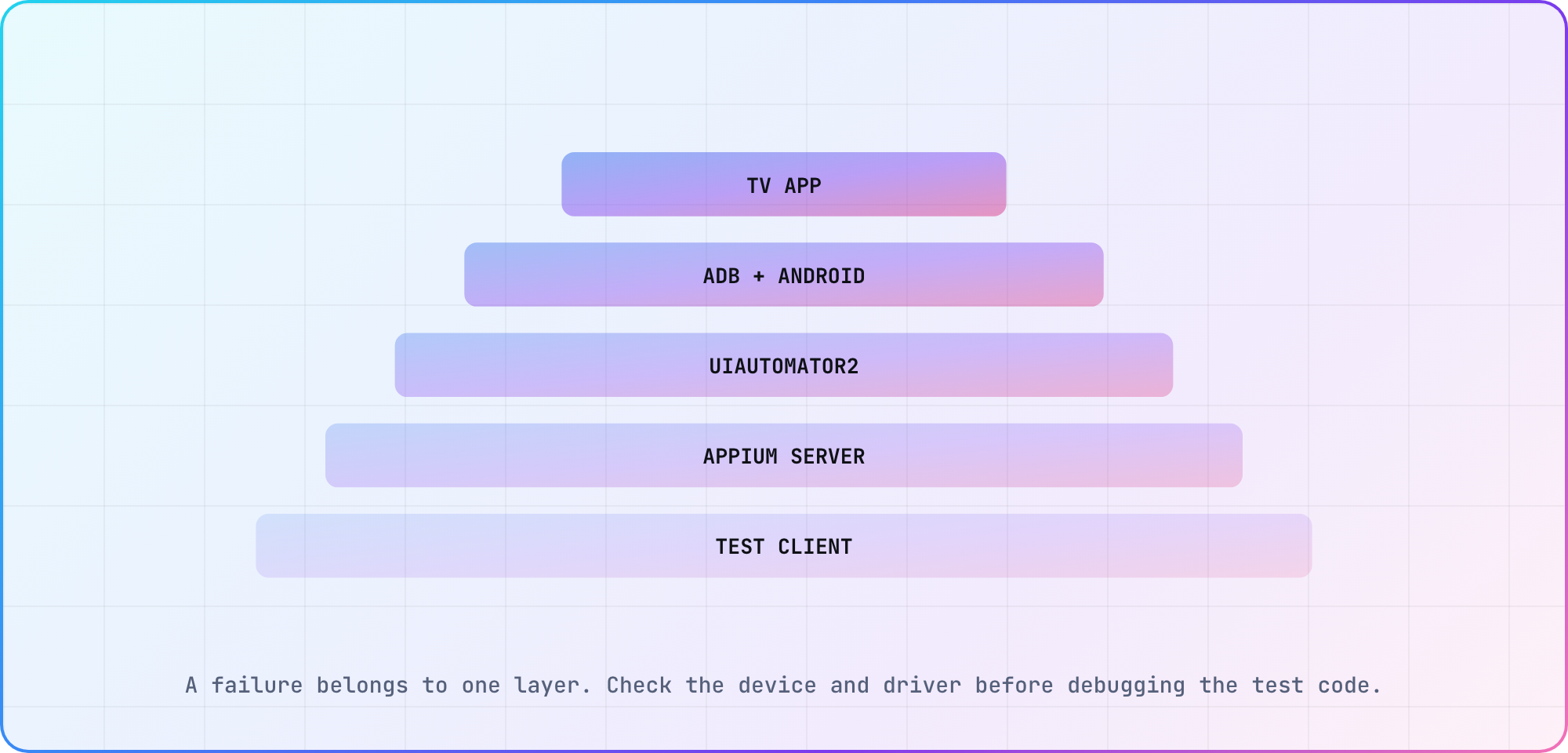
The setup layers come from Appium's UiAutomator2 requirements and Android's device tooling; the failure order is an editorial recommendation.
| Layer | Minimum proof | Save with the run |
|---|---|---|
| Android TV target | ADB lists the intended device | Model, OS and serial alias |
| UiAutomator2 | Driver installs and doctor finds no required fix | Appium and driver versions |
| Appium server | Session request reaches the driver | Server log and endpoint |
| Application | Correct package/activity launches | App build identifier |
| Test client | One focus assertion passes | Client version and test commit |
Appium's UiAutomator2 quickstart documents the Android SDK, JDK, connected device, driver install and doctor flow. Android's TV app run guide covers virtual and physical TV targets. Follow the live pages for prerequisites. Current UiAutomator2 releases need Android 8.0 (API level 26) or newer on the target, so older boxes won't run them. The core commands are:
appium driver install uiautomator2
appium driver doctor uiautomator2
adb devices
appium
Run those in an environment whose versions you record. The doctor result tells you whether required setup fixes remain; it doesn't prove your app, focus path or television firmware works.
Create a session for the exact app build
Use W3C capabilities and your real package/activity. This JavaScript example is illustrative and assumes a configured WebdriverIO client. Versions current on 15 October 2026: Appium 3.8.0, UiAutomator2 driver 8.7.0 and WebdriverIO 10.0.2, which needs Node 22.19 or newer:
const driver = await remote({
  hostname: "127.0.0.1",
  port: 4723,
  capabilities: {
    platformName: "Android",
    "appium:automationName": "UiAutomator2",
    "appium:deviceName": "android-tv-target",
    "appium:appPackage": "com.example.catalog",
    "appium:appActivity": ".TvActivity",
    "appium:noReset": true
  }
});
Don't cargo-cult deviceName, package or activity values. Resolve them from the connected target and build. If the team tests multiple TVs in parallel, give each run an explicit device identifier rather than letting ADB choose.
Start with one observable assertion: the expected browse heading exists after launch. Then add input. A session that opens the app is a setup result, not a navigation suite.
Drive the remote path, not screen coordinates
Android exposes key events for directional input, select and Back. The UiAutomator2 driver documentation is the versioned place to confirm supported commands and requirements. Use the client or mobile-command route documented by your installed versions. Avoid copying numeric key codes without naming them in the test; six months later, 22 is archaeology.
await driver.execute("mobile: pressKey", { keycode: 22 }); // DPAD_RIGHT
await driver.execute("mobile: pressKey", { keycode: 23 }); // DPAD_CENTER
await driver.back();
Verify that command shape against the installed UiAutomator2 driver before committing it. Then assert focus or selected state after each meaningful step. A TV test should say "the second title has focus" or "details for Harbor Walk opened," not "the script pressed Right twice."
Stable accessibility labels and resource IDs make these assertions easier. Coordinate taps are a bad fit for a ten-foot interface because they bypass the same directional graph the viewer uses.
Make failures reproducible
Save the Appium server log, test commit, app build, target model, Android version and input sequence. Capture a screenshot when it helps, but pair it with the focused element or page source. A picture of the screen doesn't show which control Appium believed was active.
Keep the test small enough to locate the first broken transition:
- Launch the browse screen.
- Assert the initial focused control.
- Send one directional input and assert the new focus.
- Select a title and assert its detail screen.
- Press Back and assert the restored browse position.
That journey catches more TV-specific trouble than a long suite full of phone-style taps.
Add one negative case before expanding the suite. Launch with an empty catalog or disconnect the API after the first screen loads, then verify that focus reaches a useful recovery action. TV failures are often navigational failures in disguise: the message renders, but the remote can't reach the button that would fix the problem.
Once the five-step path is stable, run it against a second Android TV target with the same app build. Keep device-specific expectations out of the shared test unless the product really differs. The comparison will tell you whether a failure follows the application, the Android version or one piece of hardware.
Keep hardware evidence outside Appium
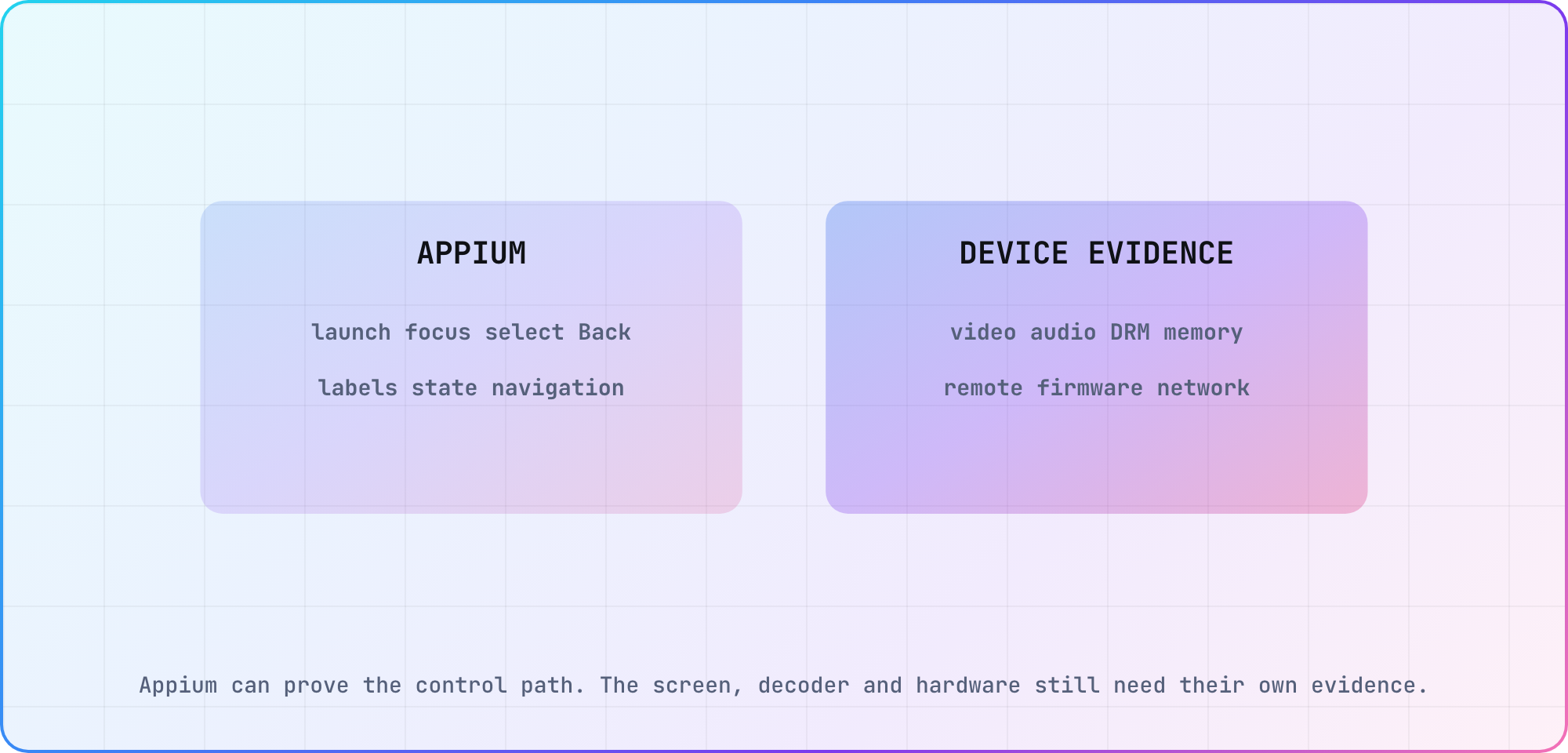
An editorial boundary between UI automation evidence and checks that still depend on the media and hardware path.
Appium is strong at repeatable control flow, element state and navigation regressions. It doesn't prove video quality, audio routing, DRM license behavior, memory pressure or every firmware-specific remote quirk. Put those checks in the cross-device test strategy and attach them to the same app build.
Use the device database to identify representative Android TV and Google TV targets. Carry the automated result and the hardware result into the CTV release-readiness checklist as separate evidence. When one fails, you'll know which layer to investigate.
Frequently asked
Can I use Appium on Android TV?
Yes. Appium's current driver catalog lists TV among UiAutomator2's Android targets, and UiAutomator2 is maintained by the Appium team. You still need the Android SDK, a visible ADB target, the correct application identifiers and TV-specific input assertions. Record versions because driver and command behavior can change.
Which Appium driver supports Android TV?
Use UiAutomator2 for the standard Android TV native-app path. Appium's catalog lists TV among its Android targets, and Espresso, the other official Android driver, lists TV too. Install it through the Appium extension CLI, run its doctor check and save the installed version. A community TV driver isn't needed for this particular Android target.
How do I send remote keys with Appium?
Use the key-event command supported by your installed UiAutomator2 version to send directional, center and Back input. Name the key in test code even when the API accepts a number. After each meaningful input, assert focus or application state so the test proves navigation rather than merely proving commands were sent.
Should I automate an Android TV emulator or a real device?
Use both for different jobs. The emulator gives CI a repeatable install, launch and navigation loop. A real device adds the production remote, hardware decoder, memory ceiling, DRM path and firmware behavior. Keep the results separate, and don't let an emulator pass approve media or hardware behavior it never exercised.
Can Appium verify video playback quality?
Appium can assert player controls, labels and visible application state, but those checks don't measure dropped frames, audio quality, decoder behavior or a protected HDMI path. Pair UI automation with player telemetry and targeted hardware observation. Attach both evidence sets to the same app build so they remain comparable.
Does this setup work for Roku, Tizen, webOS and tvOS?
No single Android setup covers those platforms. Appium lists XCUITest for tvOS and separate community or vendor-supported drivers for several other TV systems, each with different maintenance and capabilities. Check Appium's driver catalog before choosing a driver, and validate community tooling against the exact firmware and application type.
Keep reading
Remote Smart TV Testing Without a Local Device Lab
Compare remote smart TV testing by exact hardware coverage, interaction depth, private-network access and evidence capture, then keep a small local smoke kit.
Samsung Tizen TV Test Automation: Limits and Workarounds
Automate Samsung TV build, signing, install and evidence capture while keeping device focus and playback verdicts outside unsupported official UI automation.