How to Build a Roku Channel with BrightScript
Build a small Roku channel with BrightScript and SceneGraph, sideload it to a real device, inspect its output and preserve the package evidence you need next.
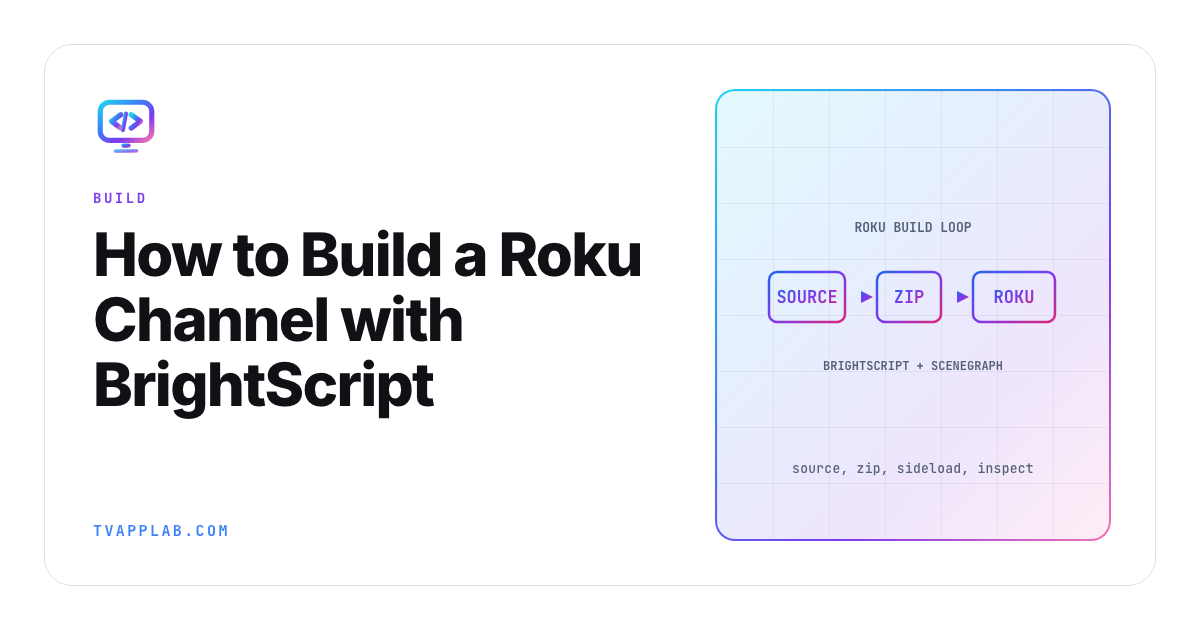
Roku app development has an odd first milestone. You don't get a friendly browser preview that proves the whole stack. You get a ZIP file, a Roku on the same network and a screen in the device's Development Application Installer. Once that package launches, the rest of the platform starts making much more sense.
I'd keep the first channel tiny: one SceneGraph scene, one label and one remote action. The goal isn't to invent a streaming service before lunch. It's to see how BrightScript logic, XML components and the device loop fit together. Roku's SDK documentation is the authority for account and device setup, while its packaging guide explains why the final package comes from Roku hardware.
Set up the device loop first
Enroll the account that should own the app, put a development Roku on the same network as your computer and enable Developer Mode using Roku's current device instructions. Record the device model and Roku OS version before you load anything. That small note becomes useful the first time two televisions behave differently.
The Development Application Installer accepts a development ZIP and launches one sideloaded app at a time. Treat the ZIP as an artifact, not a folder you happen to have nearby. Give it a build identifier and keep the source revision beside it.
| Artifact | What it proves | What it doesn't prove |
|---|---|---|
| Source commit | Which code you intended to build | Which ZIP reached the device |
| Development ZIP | Exact sideload input | Store signing or certification |
| Launch screenshot | The scene rendered on one target | Remote and playback behavior |
| Debug log | What the app reported during the run | What the viewer saw on screen |
| Device record | Model and Roku OS used | Coverage across supported devices |
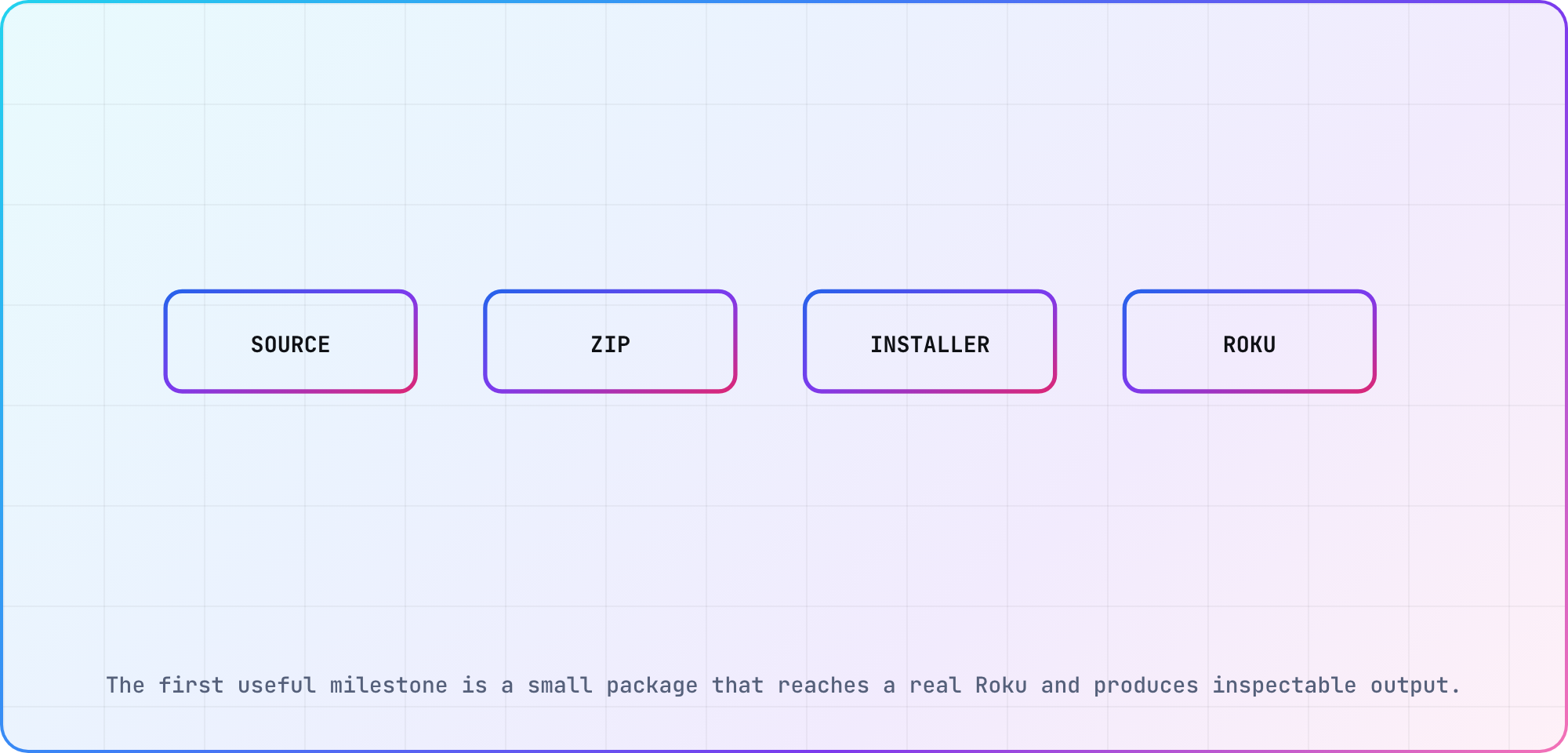
Illustrative build path based on Roku's current development and packaging documentation.
Give the project one scene
A Roku SceneGraph app combines XML component declarations with BrightScript behavior. Roku's SceneGraph compilation guide says component XML and related .brs files under pkg:/components are compiled when the app starts. It also warns that component names are case-sensitive and that there must be only one component extending a scene node class.
A first project can use this shape:
manifest
components/
  MainScene.xml
  MainScene.brs
source/
  main.brs
images/
Keep main.brs boring. It creates the screen and a message port, creates your scene, shows the screen, then waits on the port until the screen closes. Roku's Hello World sample follows the same pattern. Put the visible UI in MainScene.xml, then keep its event handling close in MainScene.brs. If BrightScript syntax is new, use the BrightScript beginner guide before adding networking or playback.
Here's a deliberately small scene:
<?xml version="1.0" encoding="utf-8" ?>
<component name="MainScene" extends="Scene">
  <script type="text/brightscript" uri="MainScene.brs" />
  <children>
    <Label id="status" text="Ready" translation="[120, 120]" />
  </children>
</component>
And the matching initialization code:
sub init()
    m.status = m.top.findNode("status")
    m.status.text = "Roku channel loaded"
end sub
These snippets are documentation-based examples and haven't been executed for this article. Use them to inspect the project boundary, then compare every component and field with Roku's current node reference before it enters production code.
Sideload one known package
Create the ZIP from the files inside the project root so manifest lands at the archive root. Upload that exact ZIP through the Development Application Installer. When it launches, capture the device, OS, source revision, ZIP hash and observed label. If it fails, preserve the console output before changing the project.
This is where I'd resist adding a second screen. A clean launch gives you a stable point from which to test focus, deep links and playback. When the label doesn't appear, you have three likely places to look: package shape, component compilation and entry-point code.
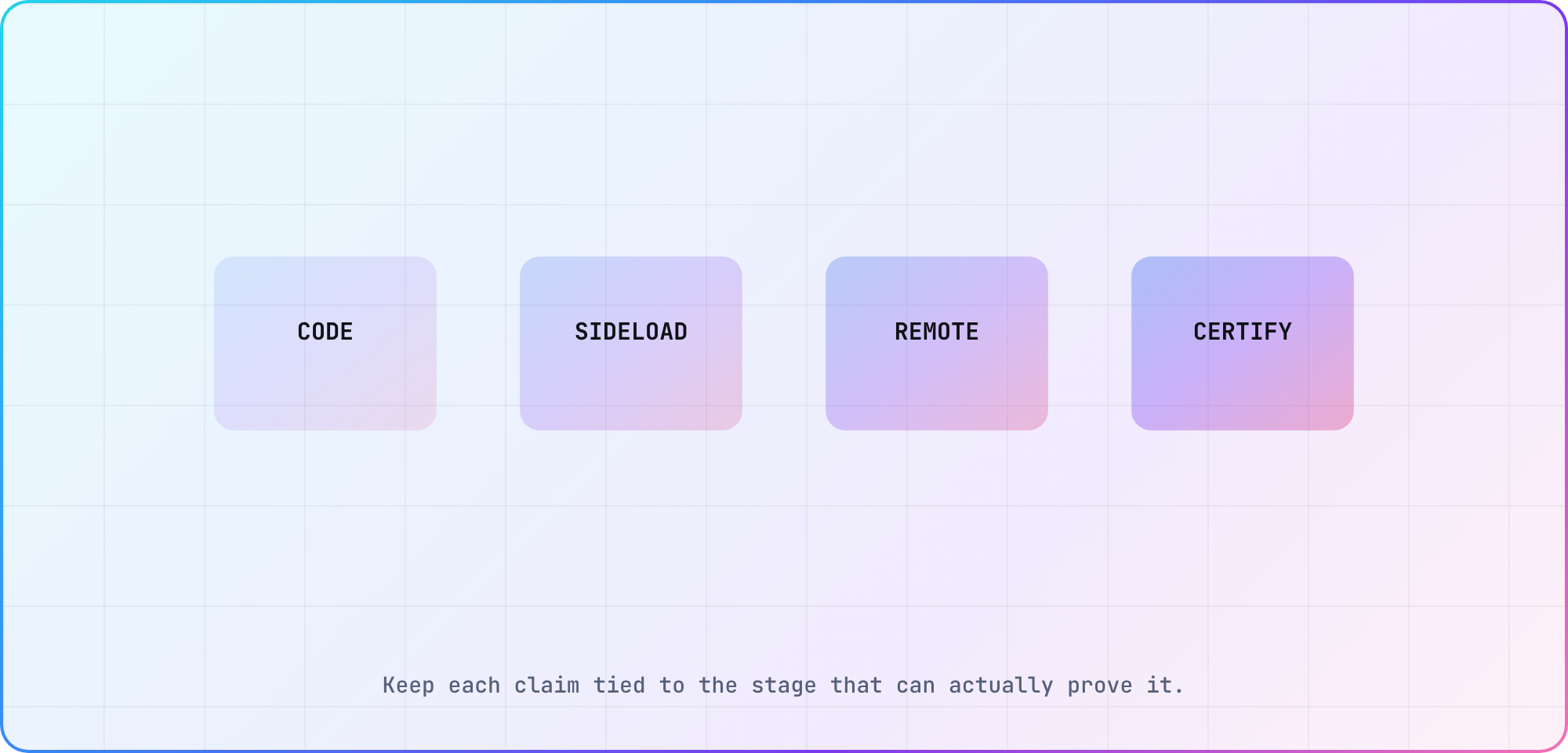
Illustrative evidence split. Each stage answers a different question about the same build.
Add a remote journey before content
Now give the remote one useful job. Add a focusable button or poster, make focus visible and define what Select and Back should do. Roku's certification criteria cover remote responsiveness and navigation, so this isn't cosmetic polish that can wait until submission.
Write a short journey before you write the handler:
- Launch from a clean session.
- Confirm the initial item has visible focus.
- Press Right and observe one predictable move.
- Press Select and record the resulting state.
- Press Back and confirm where the app returns.
Keep expected and observed results separate. A sentence copied from the test plan isn't device evidence. When the basic route is stable, use the Roku certification checklist to turn the same build into a release candidate.
Package with ownership in mind
Roku's publishing guide recommends publishing from the developer account owned by the organization that owns the content, with outside developers assigned appropriate roles. It also distinguishes temporary beta apps from public apps that must pass certification.
The package signing material deserves the same care as the source. Roku's packaging process uses cryptographic hardware on the development device and a signing key. Preserve the developer ID and password through your team's secret process. Don't paste them into project notes or source control.
A useful finish line for this first Roku channel is modest: one exact ZIP launches on one named device, the initial focus is obvious and the debug record points back to a source revision. From there, playback and store work have somewhere solid to land.
Frequently asked
Do I need a Roku device for Roku app development?
For anything you'll ship, yes. Roku's Cloud Emulator can sideload to a virtual Roku, but it's in a phased rollout, it's a paid subscription sold only in the USA once the 5-hour trial ends, and Roku says it isn't for performance testing. Packaging uses cryptographic hardware built into Roku devices, so the release build comes from a physical Roku.
Should I start with BrightScript or SceneGraph?
Learn them together through one small scene. BrightScript handles application behavior, while SceneGraph defines the component tree and visible interface. A language-only exercise helps with syntax, but the first device milestone should connect an XML scene, its BrightScript file and the entry point that shows it.
What belongs at the root of the Roku ZIP?
The manifest file and project directories should sit at the archive root rather than inside an extra parent folder. Keep the ZIP as a named build artifact and inspect its contents before upload. A correct source tree can still fail when the archive adds an unintended directory level.
Can a beta Roku app replace device testing?
No. A beta app gives selected testers a production-like distribution path without public certification, according to Roku's publishing guide. It expands real-device feedback, but it doesn't replace your own reproducible sideload loop, target-device records or the certification checks required before a public app can ship.
How should I debug the first Roku launch?
Start with package shape, component compilation and the entry point, in that order. Preserve console output before editing the project. Record the device model, Roku OS, ZIP hash and source revision so a later successful launch can be compared with the failed artifact instead of reconstructed from memory.
When should I add video playback?
Add playback after the app launches reliably and a short remote journey behaves predictably. That sequence keeps package, focus and player failures from collapsing into one mystery. When you introduce video, record the stream, codec, DRM state, device model and first player error beside the same build identifier.
Keep reading
Remote Smart TV Testing Without a Local Device Lab
Compare remote smart TV testing by exact hardware coverage, interaction depth, private-network access and evidence capture, then keep a small local smoke kit.
Samsung Tizen TV Test Automation: Limits and Workarounds
Automate Samsung TV build, signing, install and evidence capture while keeping device focus and playback verdicts outside unsupported official UI automation.