webOS TV App Development: Build an LG TV App
webOS TV app development with current tools, remote-first HTML, an IPK package, the simulator, and a repeatable Developer Mode television test workflow.
ares-package can turn a folder of HTML, CSS and JavaScript into an IPK quickly. That fast first win is why webOS TV app development can feel simpler than it is. The package still needs a remote-driven focus path, a Developer Mode session and a test plan that survives model years.
Tool names cause the first avoidable mistake. LG's current pages document webOS Studio and webOS CLI, while older tutorials point to similarly named products that LG now marks deprecated. Check the current tool page before copying the first command.
Choose the current webOS TV app development tools
LG's webOS Studio installation page is the source to check for supported hosts and current limitations. Its tooling pages distinguish the current Studio and CLI from the old webOS TV IDE, CLI, emulator and extension. As of October 15, 2026, the current releases are webOS CLI 3.2.6, published September 8 on GitHub (LG moved its CLI release notes there from 3.2.0), and webOS TV Simulator 1.5.0 from March 2026, which added the webOS TV 26 Simulator according to LG's Simulator release notes.
| Need | Start with | Watch for |
|---|---|---|
| Guided project and device workflow | webOS Studio | Host and simulator support for your machine |
| Scriptable local and CI workflow | webOS CLI | Command version and configured device target |
| Fast UI pass | webOS TV Simulator | Missing hardware, media and memory behavior |
| Final development run | Developer Mode app on TV | Session expiry and target firmware |
I'd use Studio for a first project if it supports the development machine, then record the equivalent CLI operations needed by the team. A clickable workflow is handy; a build that only one laptop can reproduce is not.
Generate the app and keep the platform file visible
LG's first web app guide walks through project creation, simulation, packaging, installation and launch. The source tree is a web app plus webOS metadata. Keep the platform configuration in review instead of hiding it behind a generator.
{
  "id": "com.example.catalog",
  "version": "1.0.0",
  "vendor": "Example Team",
  "type": "web",
  "main": "index.html",
  "icon": "icon.png",
  "title": "Catalog"
}
This appinfo.json is illustrative, but it carries every field LG's appinfo.json reference marks mandatory: id, version, type, main, title and icon (vendor is optional). The icon has to be an 80x80 PNG that actually exists at that path, because ares-package reads appinfo.json for required fields such as main and icon and expects both files to be there. Use your real identifier, version, vendor, entry file and artwork. Changing the JavaScript while forgetting the package version is an impressively boring way to test yesterday's build.
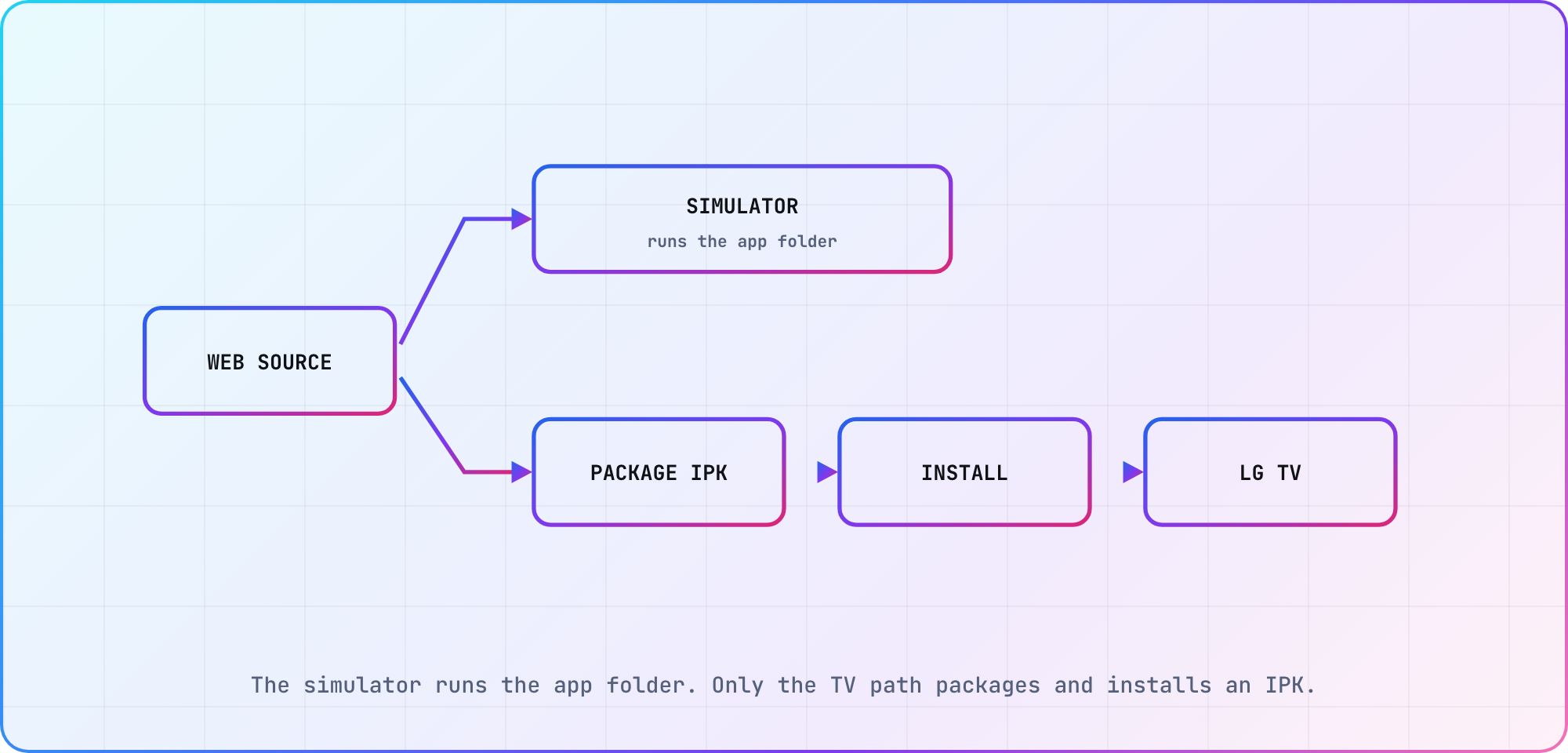
In LG's first-app workflow the simulator runs the app folder directly; only the TV path packages and installs an IPK.
Make the web interface usable from the sofa
Start with semantic controls and a visible focused state. LG's App Self Checklist makes both input modes mandatory: selectable UIs "must be controlled by 4-way navigation keys (Up, Down, Left, Right), OK, and Back buttons," and also "by screen cursors and OK button." So every selectable element has to work with the arrow keys, OK and Back, and with the Magic Remote pointer and OK.
.card {
  border: 4px solid transparent;
  transform: scale(1);
}

.card:focus {
  border-color: #ffffff;
  transform: scale(1.05);
  outline: none;
}
That focus style is only a starting point. Check contrast against actual artwork, make sure scaling doesn't clip neighboring cards, and define movement when rows have different lengths. Test Back at every layer: overlay, details, browse and application exit. A pointer-driven happy path won't reveal a stranded D-pad user.
Use the TV resolution simulator for the cheap layout pass, but don't confuse browser rendering with webOS behavior. The LG webOS testing guide covers the wider simulator and hardware workflow.
Package the IPK and use Developer Mode deliberately
The first-app guide packages the project as an IPK and installs it to a configured target. On a television, LG's Developer Mode app guide covers enabling the session, connecting the computer, obtaining the key and managing the session. LG's first-app guide describes webOS TV web apps as "very similar to standard web apps" built with HTML, CSS and JavaScript, which is the model behind the package.
Keep credentials and device keys out of screenshots, shell history and the repository. Save the non-secret parts instead: TV model, webOS version, package version, IPK hash, connection method and observed result.
Developer Mode is a session, not a permanent deployment channel. LG says Developer Mode turns off when the TV reboots after the session time has run out, or after ten reboots without a network connection, and the apps you installed in Developer Mode are then uninstalled. You can add time with the EXTEND button while the TV's online, but once the session runs out it can't be extended. That changes how you debug an overnight failure: first confirm the session and installed package before rewriting application code.
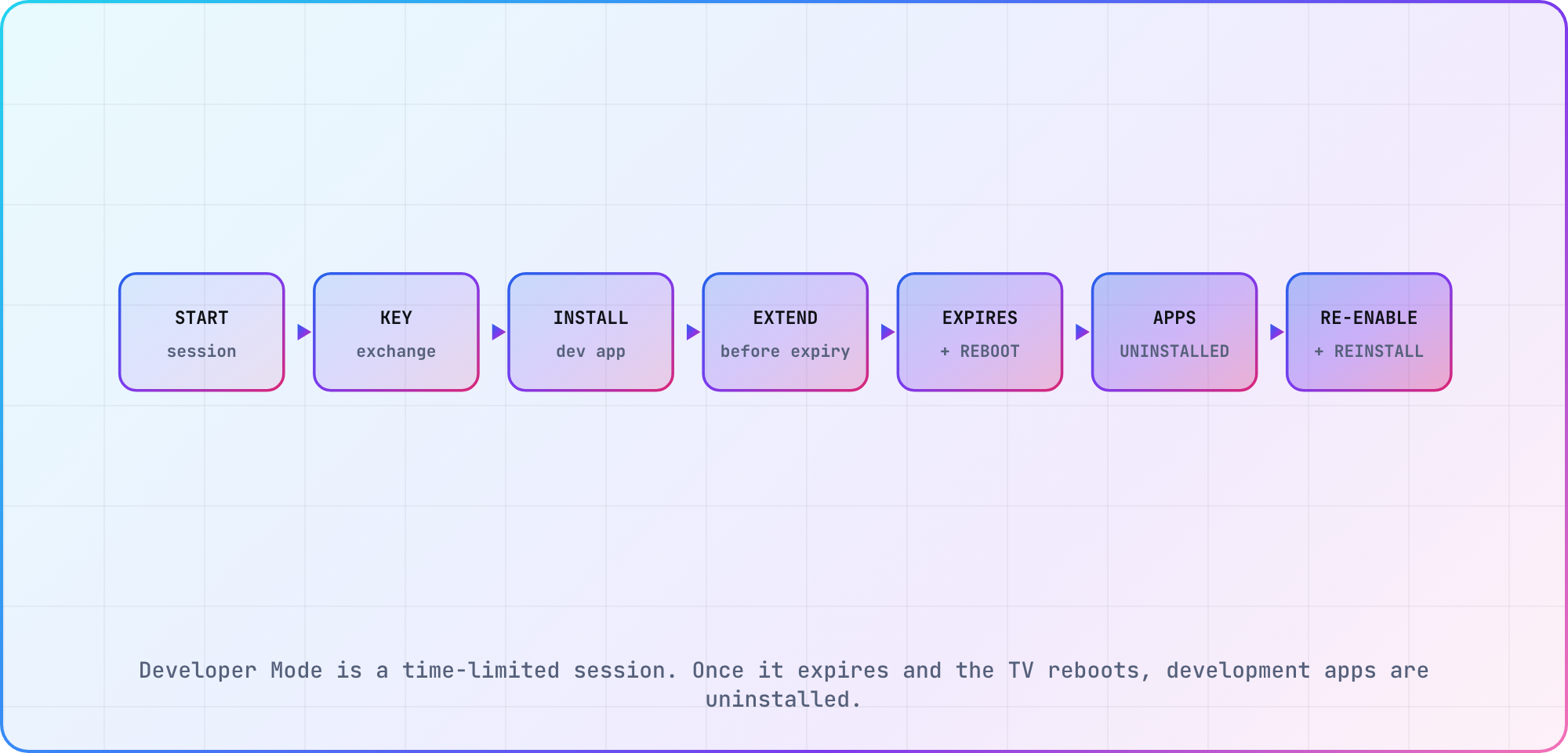
Based on LG's Developer Mode guide: the session can be extended only before it runs out, and after it lapses and the TV reboots, the development apps are uninstalled.
Separate simulator evidence from television evidence
Run the same short journey in both environments: clean launch, D-pad browse, selection, Back, clear playback, background and relaunch. Record them as separate results.
| Check | Simulator | LG television |
|---|---|---|
| Layout and basic JavaScript | Fast first pass | Confirm on target engine |
| Focus and key handling | Useful | Required with actual remote |
| IPK packaging | Not used (runs the app folder) | Install exact artifact |
| Media, DRM and decoder | DRM not supported; media specs differ | Required |
| Memory and lifecycle | Approximation | Required by model and firmware |
An LG Smart TV app development guide that stops at the simulator leaves the most expensive failures untouched. Add at least one representative television early, record it in the device inventory, then widen the matrix by model year and firmware as the product approaches release.
Hand the same artifact to submission
The development IPK still needs store metadata, assets, service access, policy review and model coverage. Use the Seller Lounge submission guide for that work and the CTV release-readiness checklist for the shared gate.
Keep the IPK hash or build identifier on every result. If a later package changes focus handling or playback configuration, the earlier television pass no longer approves it. That sounds fussy until two nearly identical IPKs are sitting in a downloads folder five minutes before submission.
Frequently asked
Can I develop my own webOS apps?
Yes. LG documents a web application workflow using HTML, CSS and JavaScript, current webOS tools, the simulator, and an IPK package installed on a configured television. Development access isn't the same as LG Apps approval through Seller Lounge. Keep the build, device test and Seller Lounge submission as separate stages with their own evidence.
How do I enable developer mode on an LG webOS TV?
Install LG's Developer Mode app, sign in with the required developer account, enable the session and follow LG's current connection and key-exchange instructions. Menus and session behavior can change, so use the live guide. Record the model and webOS version, but never save the device key in project files.
Should I use webOS Studio or the CLI?
Use webOS Studio for a guided project, simulator and device workflow when your host is supported. Use webOS CLI when you need repeatable scripts or CI. Many teams use both. Confirm you're following the current tools because older tutorials refer to deprecated products with almost the same names.
Why did my development app disappear from the TV?
Check the Developer Mode session before blaming the package. LG says Developer Mode turns off when the TV reboots after the session runs out, and the apps installed in it are then uninstalled. Re-enable the session, reconnect the target and reinstall the recorded IPK. If the package still disappears, capture the device, firmware and exact sequence.
Can I build a webOS TV app with React?
React can render a webOS web app, but it doesn't remove the platform work. The output still needs valid webOS metadata, remote navigation, Back behavior, packaging, device installation and television testing. Keep the framework build simple enough to inspect, and verify any runtime assumptions against the target model's web engine.
What is an IPK file on webOS TV?
The IPK is the package ares-package builds from your app folder and ares-install puts on a TV in Developer Mode. The simulator runs the folder directly, so a simulator pass doesn't test the IPK. Tie every TV result to the exact IPK version or hash, because a source commit doesn't prove which bundle reached the television.
Keep reading
Remote Smart TV Testing Without a Local Device Lab
Compare remote smart TV testing by exact hardware coverage, interaction depth, private-network access and evidence capture, then keep a small local smoke kit.
Samsung Tizen TV Test Automation: Limits and Workarounds
Automate Samsung TV build, signing, install and evidence capture while keeping device focus and playback verdicts outside unsupported official UI automation.