tvOS App Development: Build with SwiftUI
tvOS app development with SwiftUI, focus-driven navigation, AVPlayer and a simulator-to-device test path that keeps remote and playback evidence honest.
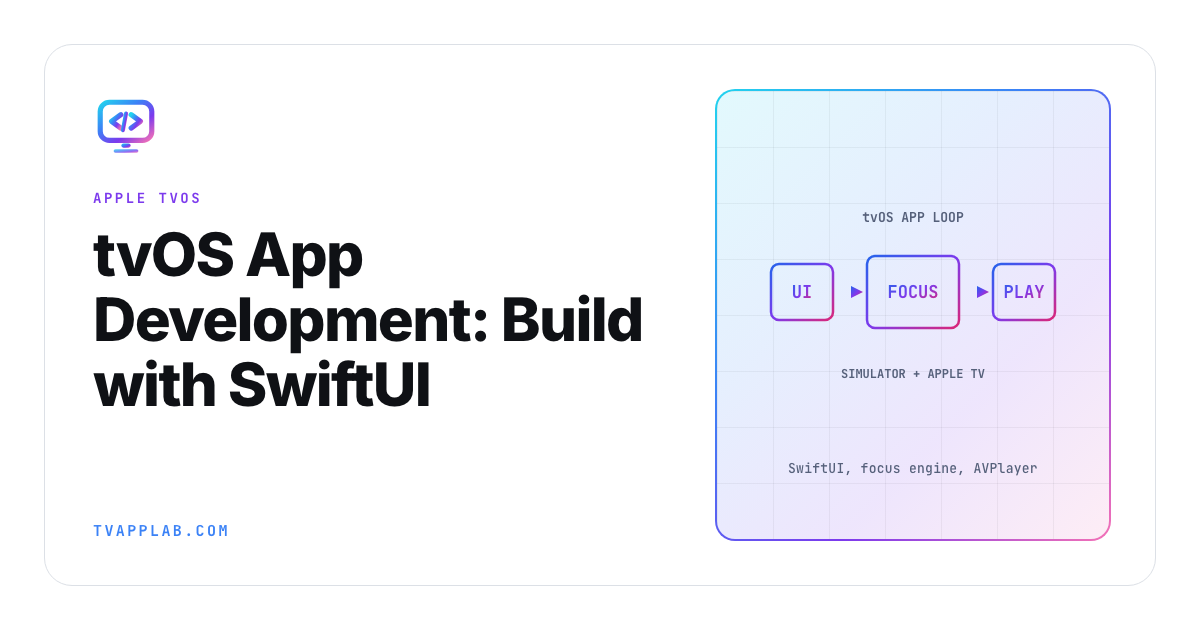
Put the Siri Remote down and a SwiftUI tvOS screen can pass for an iOS screen at a distance. Pick it back up and the resemblance ends. There is no finger telling the interface where the user meant to go. Focus has to choose, show itself, survive a screen transition and return somewhere sensible when the user presses Back.
We'll build one browse-to-detail journey, give focus an explicit home, attach a player boundary and run the same steps in the simulator and on Apple TV. The code stays small on purpose. A larger sample would hide the decisions you need to make in your own app.
Think of this as an Apple TV app development walkthrough and a focused SwiftUI tvOS tutorial, with the tvOS focus engine and tvOS app testing treated as parts of one journey rather than four unrelated topics.
Apple's current tvOS getting-started page puts SwiftUI, focus and media frameworks in the same platform path. It is a good map, but you still have to turn those pieces into one repeatable journey.
Start tvOS app development with a target you can explain
In Xcode, create a tvOS app with SwiftUI or bring an existing app over. For an existing app, Apple's multiplatform target guide is direct: "if your existing app uses SwiftUI and you plan to use SwiftUI for the new platform, use one multiplatform target." Separate targets are for platforms whose technologies and settings don't overlap much. Before choosing, decide which layers are truly shared. Models, API clients, entitlement state and analytics often belong in shared packages. The view hierarchy, focus state, remote commands and playback presentation deserve tvOS ownership.
| Layer | Usually shared | tvOS-specific work |
|---|---|---|
| API and account models | Yes | Only platform authentication edges |
| Catalog state | Yes | Focusable presentation and paging |
| Design tokens | Often | Ten-foot scale and focused appearance |
| Navigation | Concepts | Focus restoration and Menu/Back behavior |
| Playback | Stream contract | AVKit presentation and remote controls |
I prefer a shared product core with a native tvOS shell until the evidence says otherwise. It makes the platform differences visible instead of burying them under conditional modifiers.
Build one focusable browse journey
Start with a row of honest SwiftUI controls. Buttons participate in the focus system and give you selection semantics without recreating them on a decorative view. Apple's SwiftUI focus documentation describes binding focus to state. Use it when the product needs a specific entry or restoration point.
struct BrowseView: View {
    enum Destination: Hashable { case title(UUID) }

    let programs: [Program]
    @State private var selected: Program?
    @FocusState private var focused: Destination?

    var body: some View {
        if let selected {
            DetailView(program: selected) {
                self.selected = nil
                focused = .title(selected.id)
            }
        } else {
            ScrollView(.horizontal) {
                HStack(spacing: 36) {
                    ForEach(programs) { program in
                        Button(program.title) { selected = program }
                            .focused($focused, equals: .title(program.id))
                    }
                }
            }
        }
    }
}
This is illustrative, and it has two floors: tvOS 15, the first release Apple's docs list for FocusState and focused(_:equals:), and Swift 5.7, which added the if let selected shorthand (SE-0345). As of October 15, 2026, Apple's releases page lists Xcode 27.1 and tvOS 27.0 as current, and App Store Connect has required Xcode 26 or later with the tvOS 26 SDK for uploads since April 28, 2026. The detail transition, initial focus, empty state and actual card layout still belong to your project.
The point is the return contract. When detail closes, the closure clears selected and sets focused to that title's ID, and Apple's FocusState docs say setting the value programmatically causes "focus to move to the view associated with the updated value." Here the browse row comes back in that same update, so check in the simulator that focus really lands on the title the viewer chose. "The previous screen appeared" is a weaker assertion than "the viewer can continue from the same place."
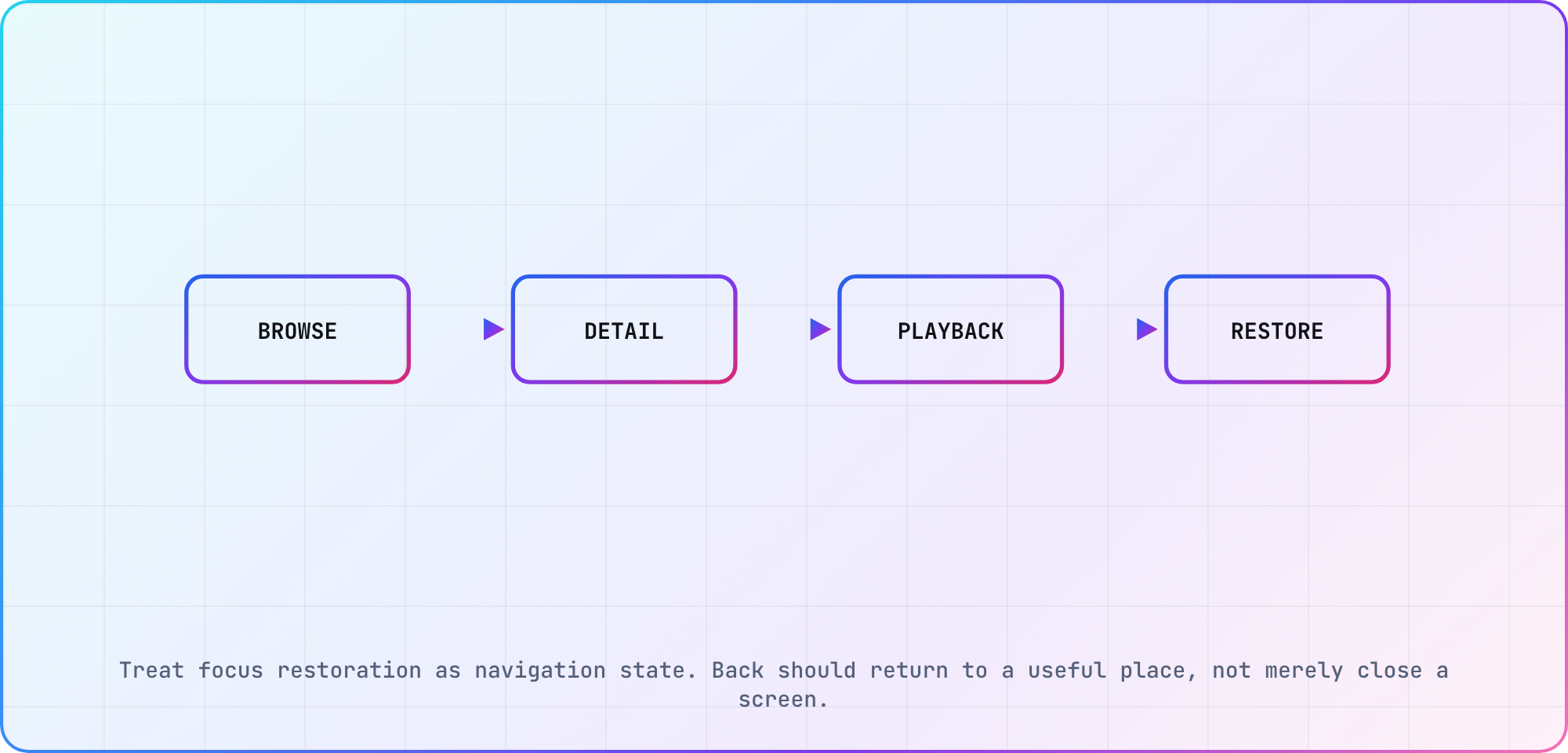
An editorial focus contract for the sample journey; verify the exact behavior in your app and target OS.
Walk the row with a remote or simulator input. Check the left and right edges, select the first and last item, return from detail and repeat after the data reloads. Focus bugs like to hide in transitions and empty states because the happy-path screenshot never exercises them.
Put playback behind a clear boundary
Apple's AVPlayerViewController documentation provides the system playback presentation, while AVPlayer owns playback state. Apple's separate AVPlayer documentation covers the player object itself. Keep the player lifetime outside transient view recomputation. Give the feature one place to create, observe and release playback resources.
For a first slice, use a known clear stream and capture the URL, codecs, app build, environment and result. Then add entitlement and protected media. If the protected asset fails, compare its player and license events with the clear run before changing UI code.
System playback controls reduce the amount of transport UI you have to invent, but they don't decide product behavior. Your app still owns what Back does from playback, whether the browse position is restored, how an expired entitlement appears and what happens after interruption.
Run the same script twice
The tvOS simulator is the quick loop for layout, navigation and much of the focus behavior. Before Xcode enters the loop, our browser-sized TV preview shows safe-area margins and the smallest legible text size for a given screen and viewing distance. For tvOS that's a layout preview only, since there's no web layer for your build to run in. Apple TV supplies the real remote, device media stack, network environment and lifecycle. Give both environments the same short script:
- Launch from a clean state.
- Move through the first browse row and reach both edges.
- Select a title and begin clear playback.
- Leave playback and confirm the useful focus position.
- Background and restore the app.
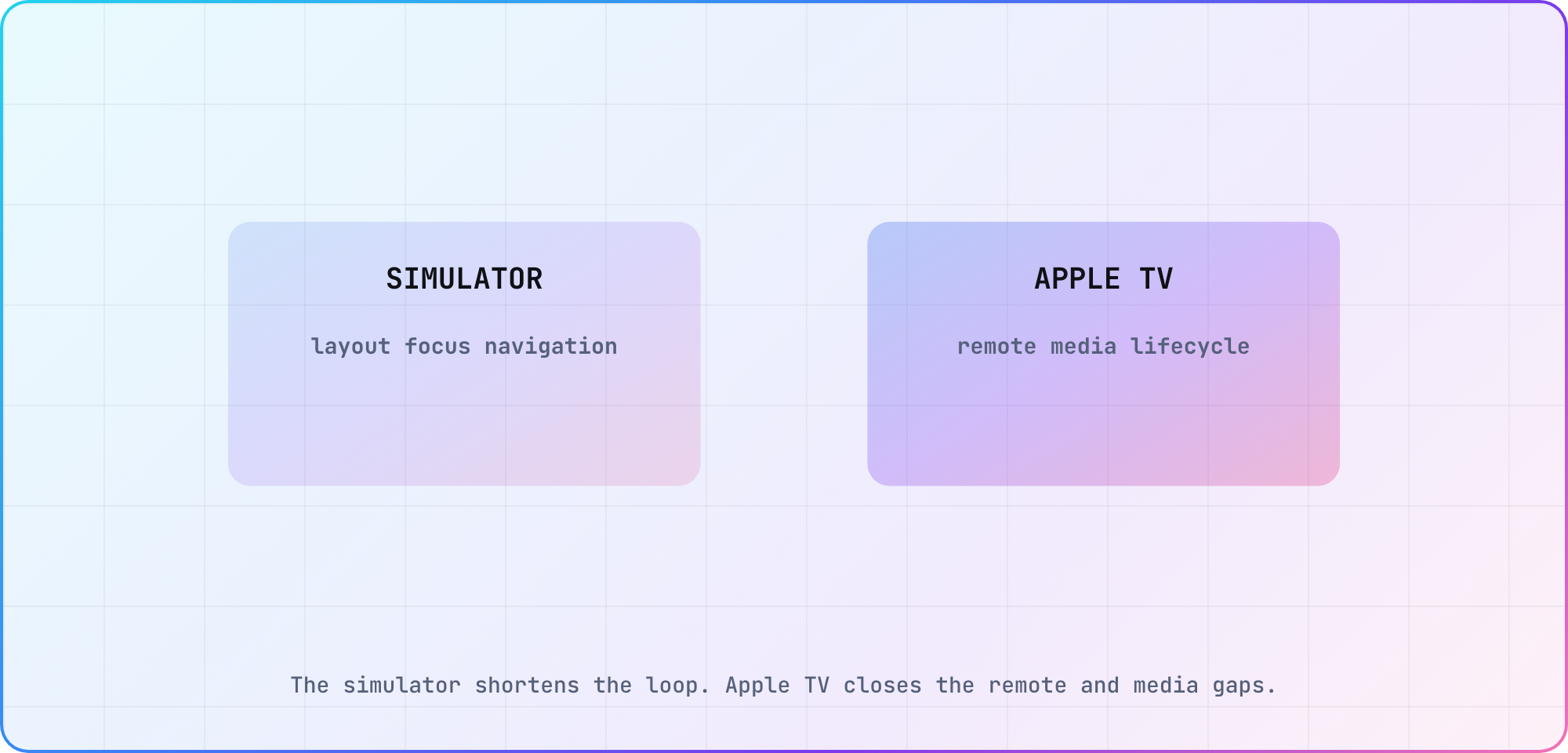
The simulator and Apple TV runs answer different questions, even when they use the same navigation script.
Here's how I'd split the evidence between them (a judgment call, so confirm the Simulator column against your own streams):
| Evidence | Simulator | Apple TV |
|---|---|---|
| Layout at target resolution | Yes | Confirm at viewing distance |
| Focus order and visibility | Fast first pass | Verify with production remote |
| AVPlayer integration | Useful | Required for target streams |
| DRM, audio and HDMI path | Incomplete | Required |
| Background and resume | Partial | Required on release hardware |
Name the Apple TV model and tvOS version in the run record. "Works on Apple TV" ages badly; a model, OS and build identifier can be repeated.
Hand the app to release work
The first build leaves store metadata, privacy disclosures, account access, accessibility and release notes open. Use the tvOS App Review guide for that handoff, and keep its review account tied to the exact build you tested.
For wider QA, keep the Apple TV result in your run record, check the tvOS row in our device database, compare the platform with the cross-device OTT test strategy, and carry unresolved issues into the release-readiness checklist. The valuable artifact is the repeatable journey plus its result, not the fact that Xcode once displayed "Build Succeeded."
Frequently asked
How to develop an app for Apple TV?
Create a tvOS app in Xcode, or add tvOS to an existing SwiftUI app's multiplatform target. Build the interface with SwiftUI or UIKit, model navigation around focus, and use AVKit or AVFoundation for media. Start with one browse-to-playback journey. Run it in the simulator, then repeat it on Apple TV with the real remote and target streams.
Does an Apple TV app have to use SwiftUI?
No. tvOS supports UIKit as well as SwiftUI, and existing applications may have good reasons to keep UIKit. For a new app, SwiftUI gives you a current declarative path with focus APIs. Choose based on the codebase and required components, then verify the remote journey instead of arguing from framework fashion.
How does focus work in SwiftUI on tvOS?
Focusable controls participate in the tvOS focus system, while SwiftUI's focus APIs let you bind important destinations to state. Use explicit focus for entry and restoration points the product cares about. Test edges, screen transitions and data reloads because a good initial focus doesn't prove the full journey.
Should I test tvOS only in the simulator?
Use the simulator for the fast layout and navigation loop, then move to Apple TV before trusting remote behavior, playback, DRM, audio output or lifecycle results. Save the two runs separately. A simulator result is useful evidence, but its scope ends before the living-room hardware path begins.
What should happen when the viewer presses Back during playback?
Define the behavior as a product contract, then test it consistently. A common path closes playback and restores the previously selected title, but your navigation model may differ. Record the starting screen, selected title, playback state and returned focus so another developer can reproduce the result without guessing what "Back works" meant.
Do I need a physical Apple TV to develop?
You don't need one for every edit. You do need representative hardware before making release claims about the remote, protected playback, audio, performance or app restoration. The simulator keeps development fast; a physical Apple TV tells you whether the same build survives the parts of tvOS the simulator can't reproduce.
Keep reading
Remote Smart TV Testing Without a Local Device Lab
Compare remote smart TV testing by exact hardware coverage, interaction depth, private-network access and evidence capture, then keep a small local smoke kit.
Samsung Tizen TV Test Automation: Limits and Workarounds
Automate Samsung TV build, signing, install and evidence capture while keeping device focus and playback verdicts outside unsupported official UI automation.