How to Build an Android TV App
Build an Android TV app with Compose for TV, a correct manifest, remote navigation, Media3 playback, and separate emulator and physical-device checks.
Start with the manifest, not the home screen. If you're learning how to build an Android TV app, an installable APK is only the first proof. The app can install and still disappear from the TV launcher because it never declared a TV entry point. Fix that, then prove the remote can reach every action and playback survives the move from an emulator to a release device.
I wouldn't begin with a giant catalog screen. I'd prove five smaller things in order: Android recognizes the package as a TV app, the remote can reach every action, the player has an honest lifecycle, the emulator loop is repeatable, and the same build survives a physical device.
This Android TV app development guide is the full first-project path. If you arrived looking for an Android TV development tutorial centered only on Compose components, the focused guide linked below carries that narrower job.
Google's current create and run guide says TV apps use the same basic structure as phone and tablet apps. It also recommends one app that supports mobile and TV where that architecture fits. The shared code is the easy part. The TV contract is where the work begins.
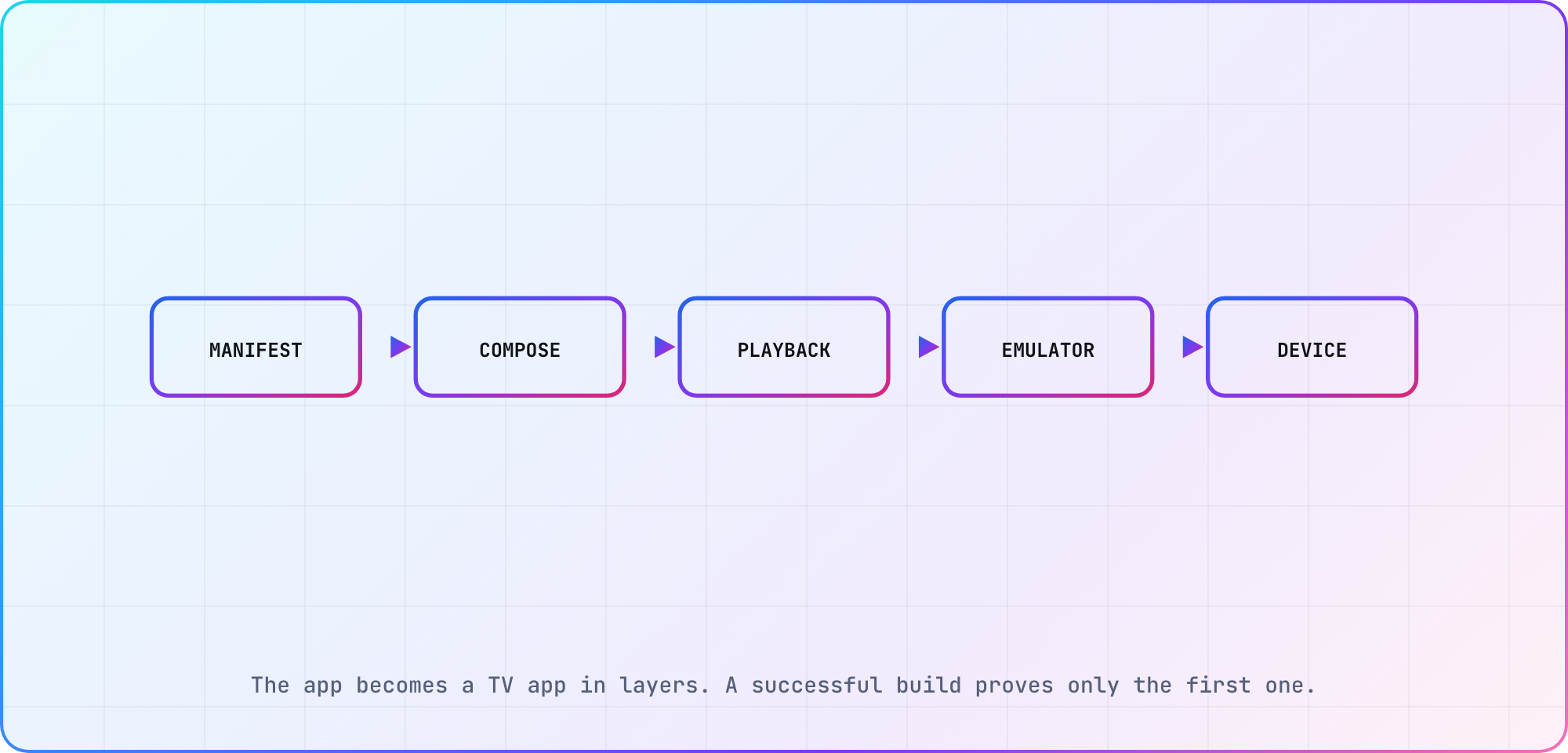
This article's build path, based on the current Android TV setup, Compose and Media3 documentation.
Decide whether TV belongs in the existing app
If you've already got an Android app, start by separating product logic from the phone interface. Networking, account state, catalog models and analytics can usually stay shared. Navigation, density assumptions, input handling and playback controls need a TV review.
Google documents both a shared app and separate TV activities in its project setup guidance. My default is one package with a TV entry point when the product, account and release cadence are genuinely the same. A separate project earns its keep when the TV experience ships on a different schedule or has a meaningfully different architecture.
Write the choice down before touching Gradle:
| Question | Shared package points toward | Separate project points toward |
|---|---|---|
| Product and account | Same service and identity | Different product or entitlement model |
| Release cadence | Mobile and TV can move together | TV releases need independent control |
| Shared code | Data and domain layers already reusable | Existing app is tightly coupled to touch UI |
| Team ownership | One Android team | Dedicated TV team and backlog |
That decision prevents a familiar mess: a TV activity bolted onto a mobile app with no owner, or a second codebase created when one new activity would have done the job.
Give Android a real TV entry point
The Android TV app manifest controls discoverability. Google's guide requires a LEANBACK_LAUNCHER activity and a declaration that a touchscreen isn't required. The leanback feature tells Google Play whether the package targets TV only or can also run elsewhere.
<manifest>
    <uses-feature
        android:name="android.software.leanback"
        android:required="false" />
    <uses-feature
        android:name="android.hardware.touchscreen"
        android:required="false" />

    <application
        android:icon="@mipmap/ic_launcher"
        android:banner="@drawable/banner">
        <activity
            android:name=".TvActivity"
            android:exported="true">
            <intent-filter>
                <action android:name="android.intent.action.MAIN" />
                <category android:name="android.intent.category.LEANBACK_LAUNCHER" />
            </intent-filter>
        </activity>
    </application>
</manifest>
This is an excerpt, not a drop-in manifest. Keep your package, theme and other application settings, but check every permission you're carrying over from the phone app. Google's TV hardware guide lists permissions that imply hardware: RECORD_AUDIO implies android.hardware.microphone, CAMERA implies both android.hardware.camera and android.hardware.camera.autofocus, and the Wi-Fi state permissions imply android.hardware.wifi (some TVs are Ethernet-only). If you request one, add a uses-feature for each implied feature with android:required="false". Do the same for any feature you declare yourself that TVs don't have, such as telephony or GPS. Google's warning is blunt: marking one required "prevents your app from being installed on TV devices or appearing in the Android TV home screen launcher." Set android.software.leanback to true for a TV-only package; Google's shared mobile-and-TV example uses false. The same guide requires a home-screen icon and localized banner. A launchable debug build doesn't prove that Play will classify it correctly.
Build an Android TV app screen around focus
Google now calls Compose for TV the modern approach and supplies TV-specific Material components. Their names resemble mobile Material, which makes the import line worth checking in review. androidx.tv.material3.Button carries TV-focused behavior; androidx.compose.material3.Button is the mobile component.
Use the androidx.tv release page to choose current library versions rather than copying a stale number from a tutorial. Older tutorials carry stale code too. TvLazyRow from tv-foundation was deprecated in July 2024 and removed in 1.0.0-alpha12 (January 2025), so it won't compile against current releases. Google's scrollable layouts guide now recommends the standard Compose lazy layouts (Compose Foundation 1.7.0 and later) instead, and says they "automatically handle D-pad navigation and bring the focused item into view." Then build one browse-to-detail journey:
import androidx.activity.compose.BackHandler
import androidx.compose.foundation.lazy.LazyRow
import androidx.compose.foundation.lazy.items
import androidx.compose.runtime.Composable
import androidx.compose.runtime.getValue
import androidx.compose.runtime.mutableStateOf
import androidx.compose.runtime.remember
import androidx.compose.runtime.setValue
import androidx.tv.material3.Card
import androidx.tv.material3.Text

@Composable
fun TvHome(items: List<Program>) {
    var selected by remember { mutableStateOf<Program?>(null) }

    BackHandler(enabled = selected != null) { selected = null }

    if (selected == null) {
        LazyRow {
            items(items) { program ->
                Card(onClick = { selected = program }) {
                    Text(program.title)
                }
            }
        }
    } else {
        ProgramDetails(program = selected!!)
    }
}
Treat that as illustrative code. Program and ProgramDetails stand in for your own types, and item keys, focus restoration and the empty state still need implementation. The useful test isn't whether the row renders. Move right several items, select one, press Back and check where focus lands. If it jumps to the first card every time, the screen technically works and the living-room experience still feels broken.
The existing Compose for TV guide goes deeper on TV Material dependencies and a small remote journey. Keep this broader article responsible for the whole app path rather than repeating every component detail.
Add playback with an explicit lifecycle
Android's Media3 getting-started guide builds an ExoPlayer, assigns media and releases the player when it is no longer needed. Put that lifecycle in a component you can reason about. Don't scatter player creation across composables because recomposition is not a playback lifecycle.
For the first vertical slice, prove one unprotected stream before adding entitlement and DRM. Record the media URL, codec, device or emulator, app build and observed player state. When the protected stream fails later, that clear-stream result gives you a useful comparison instead of a vague "playback is broken" ticket.
The UI also needs TV behavior: play and pause from the remote, visible focus when controls appear, a predictable Back path, and a decision about what happens when the app backgrounds. Media3 supplies the player machinery. It doesn't decide your product's resume rules.
Run the emulator loop, then leave it
Google documents both Android TV virtual devices and physical-device runs from Android Studio. The emulator is excellent for install, layout, focus, Back behavior and quick lifecycle work. Use the resolution simulator before it for an even cheaper ten-foot layout check. Neither tool can certify the television's decoder, HDCP chain, memory pressure or remote firmware.
| Check | Emulator | Physical TV |
|---|---|---|
| Package installs and launches | Yes | Yes |
| Focus path and Back behavior | Fast first pass | Final input check |
| Clear playback integration | Useful | Required |
| DRM and HDMI behavior | Incomplete | Required on targets |
| Low-memory behavior | Approximation | Required on representative hardware |
| Store discoverability | No | Verify with release tooling |
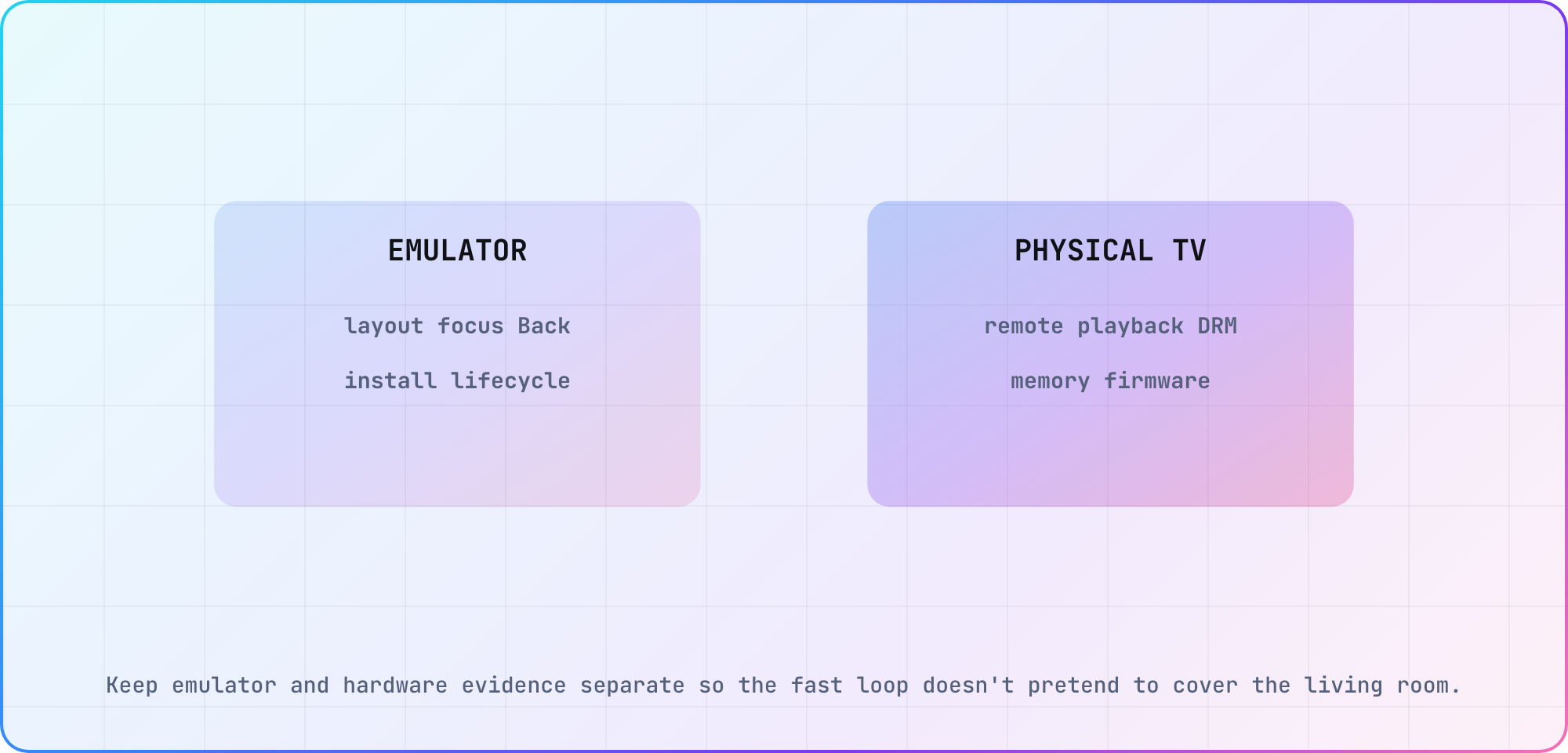
An editorial test split based on what the Android emulator can reproduce and what still depends on target hardware.
Enable developer options on a target TV, connect it using the route documented for that device, and run the same build and remote sequence. Save emulator and hardware results separately in your device inventory. "Passed Android TV" is too broad to help anyone reproduce a failure.
Know where the tutorial stops
A first app isn't a release candidate. Google's TV app quality criteria cover navigation, visual quality, functionality and Google Play requirements. You still need accessibility, account recovery, network transitions, deep links, analytics, protected playback and low-memory checks against the exact release artifact.
Use the cross-device testing guide to choose representative hardware, then carry the evidence into the CTV release-readiness checklist. The small app here proves the architecture and interaction loop. That's enough for a first milestone, and it gives the release work something real to build on.
Frequently asked
Can I install an APK file on Android TV?
Yes, Android's development workflow supports installing a debug build on a configured TV device. Treat local installation as a development step, though. It doesn't prove that Google Play will classify, accept or distribute the package. Check the launcher filter, hardware-feature declarations, artwork and current TV quality requirements separately.
How do I enable developer options on my Android TV?
Google's current guide describes opening Settings, selecting About, and selecting the Build entry repeatedly until developer mode activates. Manufacturer menus can differ, so use the device maker's instructions when that path doesn't match. Record the model and OS version beside your connection steps instead of writing one universal menu path.
Should Android mobile and TV use the same app?
Google recommends a single app where mobile and TV share the product, but that isn't a command to share one interface. Reuse data, account and domain code, then give TV its own activity and remote-first UI. Separate projects make sense when ownership, architecture or release cadence truly differs.
Is Compose for TV replacing Leanback?
Yes. Google's Leanback release page says "This artifact and its classes are deprecated. Use Compose for TV instead." Leanback 1.2.0 is still the stable release and the setup guide still documents the toolkit, so an existing app doesn't need an emergency rewrite. Start new screens in Compose and plan the migration for the rest.
Do I need a physical Android TV to develop?
You can build the first loop with an Android TV virtual device. A physical target becomes necessary before you trust playback, DRM, memory behavior, the production remote or firmware-specific behavior. Keep both results: the emulator gives you a fast repeatable loop, while hardware gives the release claim its real scope.
What makes an app appear in Google Play on TV?
The package needs the TV launcher intent, touchscreen and other TV-unavailable hardware (including features that CAMERA or RECORD_AUDIO imply) declared not required, appropriate leanback support and the required TV artwork. Then it must satisfy Google's current TV quality and Play requirements. A sideloaded app appearing under development tools doesn't prove the store will recognize or approve the same artifact.
Keep reading
Remote Smart TV Testing Without a Local Device Lab
Compare remote smart TV testing by exact hardware coverage, interaction depth, private-network access and evidence capture, then keep a small local smoke kit.
Samsung Tizen TV Test Automation: Limits and Workarounds
Automate Samsung TV build, signing, install and evidence capture while keeping device focus and playback verdicts outside unsupported official UI automation.